
What you can do
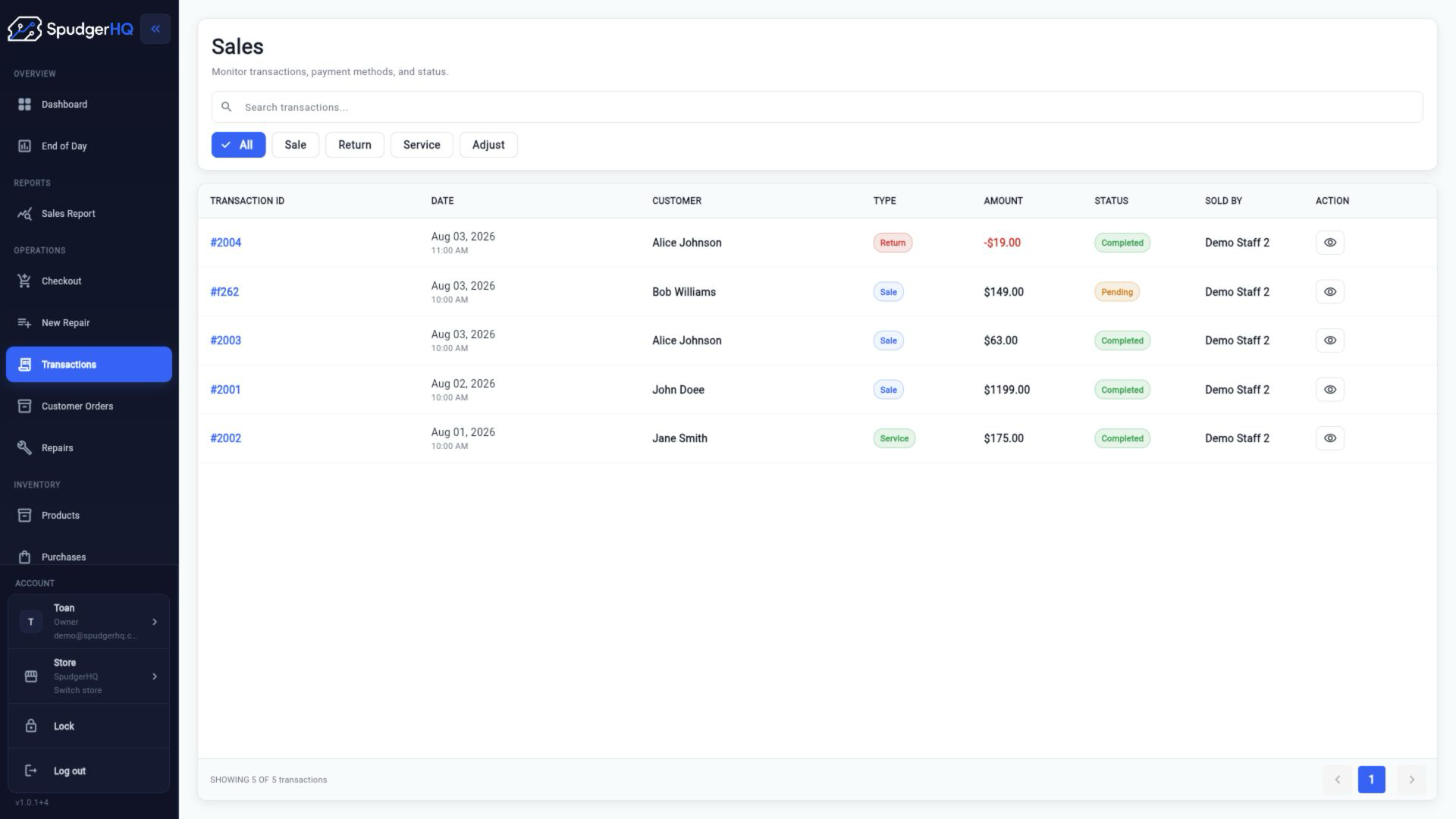
- Search completed sales and open transaction details.
- Review customer, item, total, payment, status, timeline, and repair links.
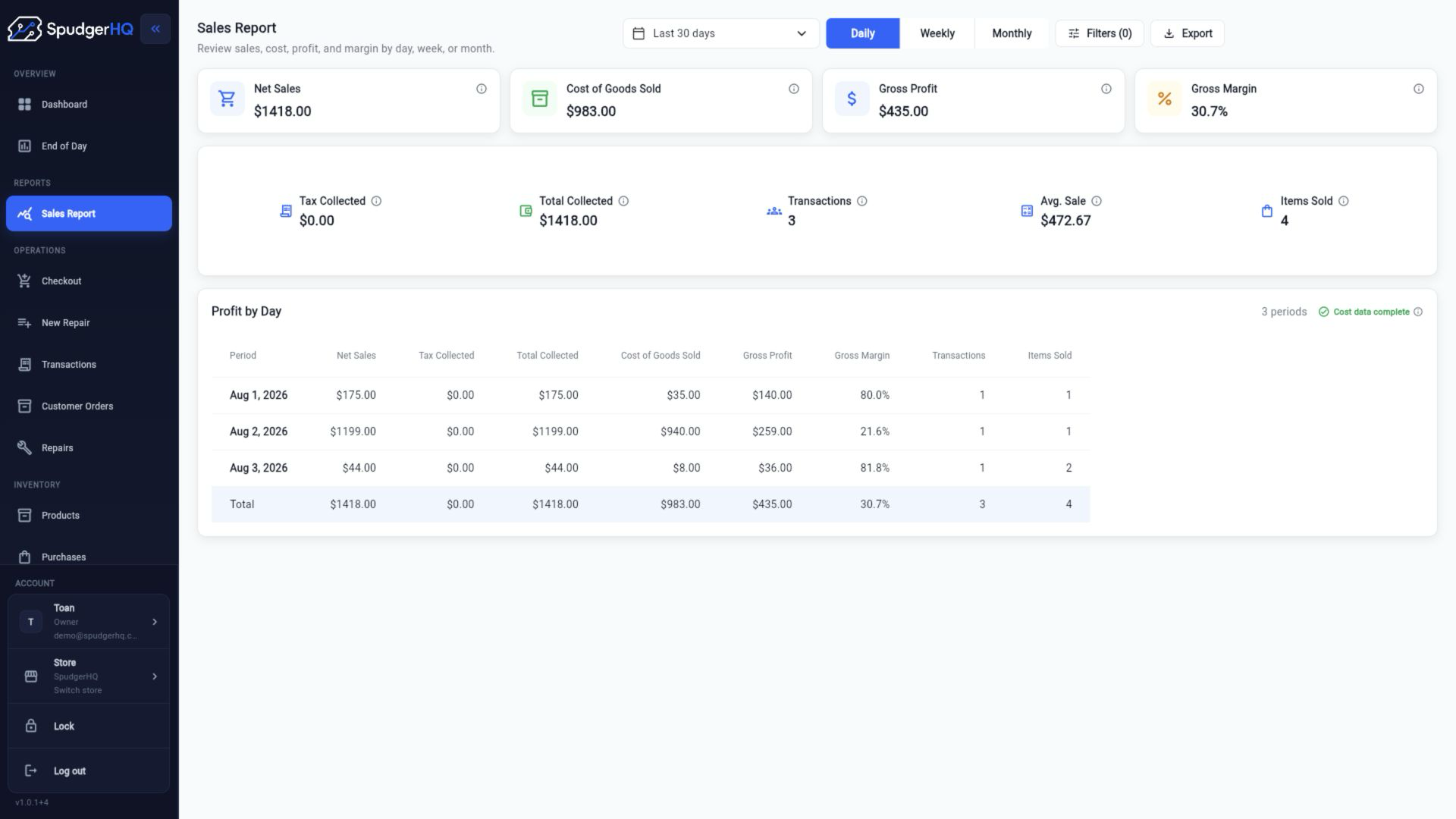
- Build daily, weekly, or monthly sales reports with filters and sorting.
- Export the selected report as PDF or XLSX when permitted.
Find the exact task
How do I find a completed sale?
Open Transactions, search or filter the completed sales list, and open the matching transaction.
- Open Transactions.
- Search by the available transaction information.
- Apply filters and open the matching result.
How do I view transaction details?
Select a transaction from the Transactions list to review its customer, items, totals, payment summary, status, timeline, and links.
How do I reprint a receipt?
Needs verificationOpen the completed transaction and use its receipt action to generate the receipt again.
- Open Transactions.
- Select the completed sale.
- Choose Print Receipt and follow the print dialog.
How do I filter transactions by staff or payment type?
Use the available transaction filters for type, date, staff, and other fields exposed by the current layout.
- Open Transactions.
- Choose the available filter controls.
- Apply the staff or payment-related filter and review the results.
How do I create a sales report?
Open Sales Reports, select a date preset or custom range, choose the grouping, and review the resulting KPIs and transaction rows.
- Open Sales Reports.
- Choose the date range and Daily, Weekly, or Monthly grouping.
- Review the KPIs, trends, breakdowns, and transactions.
How do I compare daily, weekly, or monthly sales?
Choose the matching report grouping and date range, then compare the period totals and trend information shown by the report.
How do I filter reports by payment method or sale source?
Needs verificationUse the report filters for sale source, payment method, staff, status, and search text when those controls are available.
- Open Sales Reports.
- Choose the report range and grouping.
- Apply source, payment, staff, status, or text filters.
Who can access sales reports?
Sales Reports are available to Owner and Admin roles in the current permission model. Staff access may be restricted.
How do I export a report as PDF or XLSX?
After configuring the report, choose the PDF or XLSX export action and save the generated file on your platform.
- Open Sales Reports.
- Set the date range, grouping, and filters.
- Choose Export PDF or Export XLSX.
Why do report dates use the store timezone?
Sales reports group transactions by the store’s local business date so report periods align with the store’s operating day.
Keep this context in mind
- Sales Reports are available only to Owner and Admin roles in the current permission model.
- Report dates use the store timezone from Settings.
- Exports follow the currently selected report range, grouping, filters, and sort order.
Talk to the SpudgerHQ team.
Tell us what you expected to see and which workflow you were trying to complete.