
What you can do
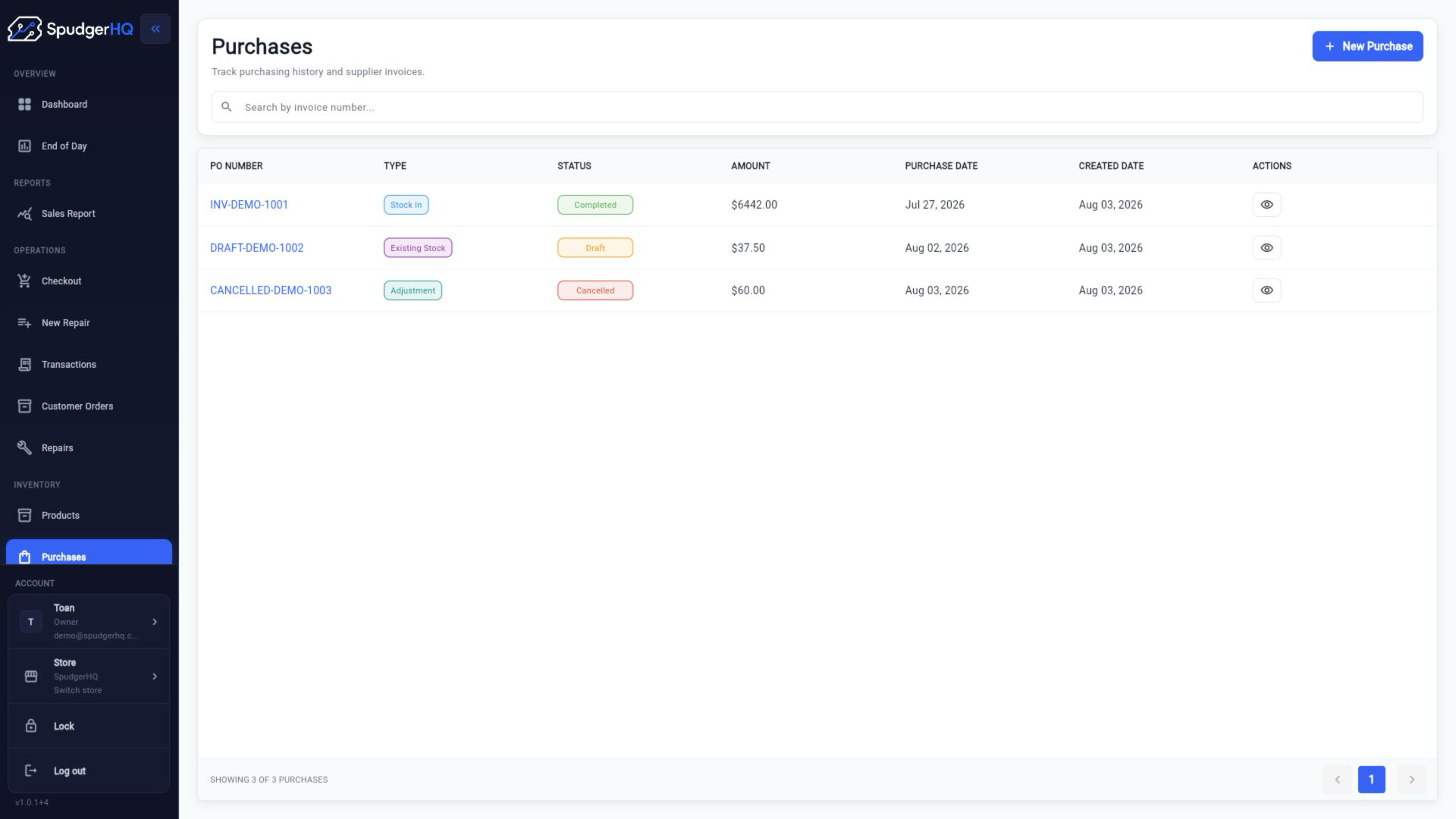
- Create, save, edit, receive, and cancel purchases.
- Verify serialized device identifiers as stock is received.
- Add and maintain suppliers from the supplier list and purchase workflows.
- Print asset labels where the receiving flow exposes that action.
Find the exact task
How do I create a purchase?
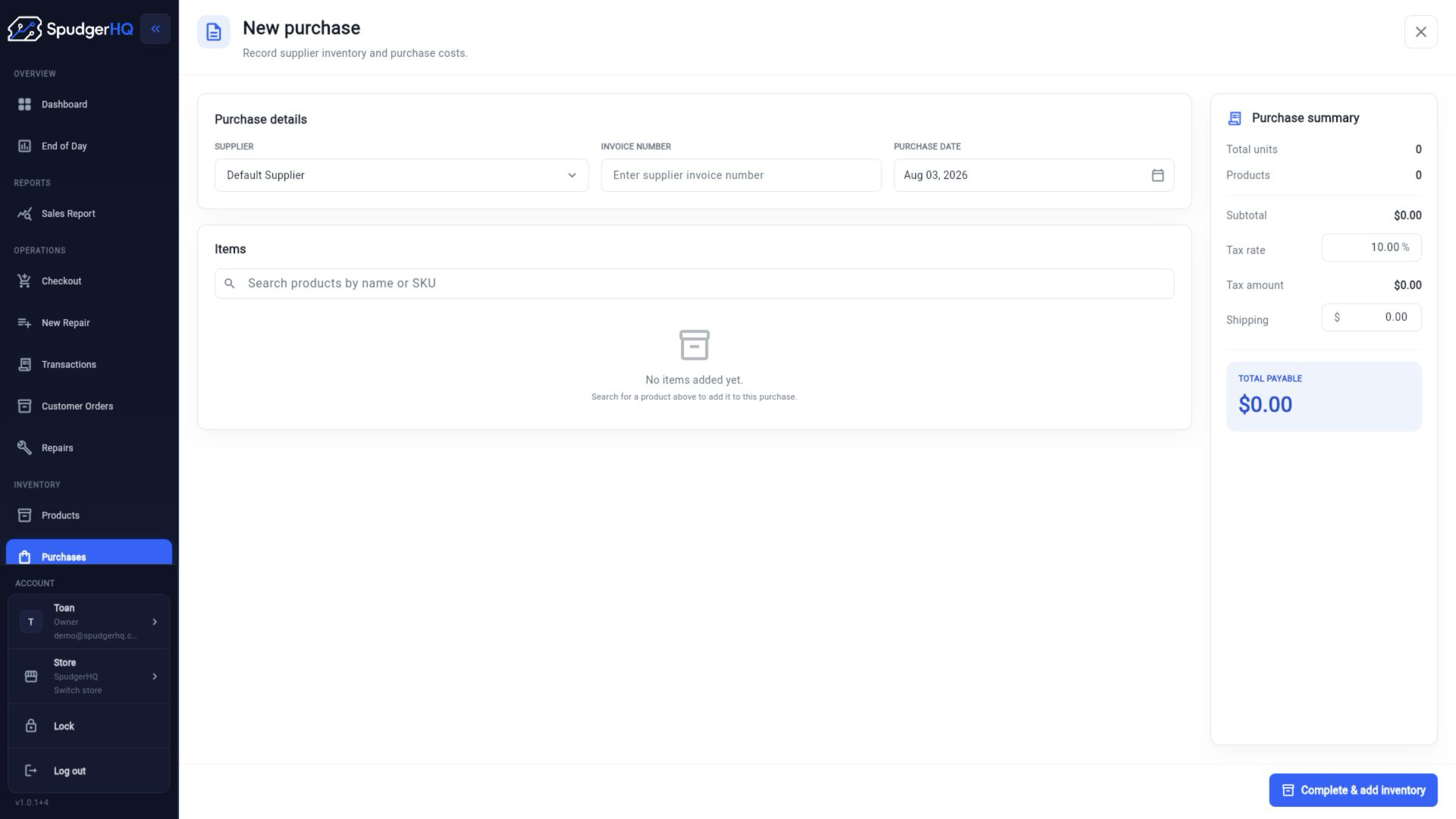
Open Purchases → Create, choose the supplier, add the products and quantities, then save the purchase.
- Open Purchases.
- Choose Create Purchase.
- Select a supplier, add line items, and save the purchase.
How do I save and edit a purchase draft?
Save a purchase before receiving it to keep a draft. Reopen the draft from Purchases, make the changes, and save again.
- Create the purchase and save it before receiving.
- Open the draft from the purchase list.
- Edit the supplier, items, or quantities and save.
How do I receive stock from a supplier?
Open an eligible purchase, confirm the received lines and quantities, verify any device identifiers, and complete receiving.
- Open the purchase detail.
- Review the items and quantities received.
- Verify identifiers where required, then confirm receipt.
How do I verify device asset identifiers?
During receiving, enter or review the IMEI or serial number for each serialized device and correct any duplicate or invalid value before completing the purchase.
- Open the serialized device line.
- Compare the physical identifier with the value on screen.
- Correct the value and save before receiving the purchase.
How do I add a new supplier?
Active · embedded workflowUse the supplier action available from Purchases or Suppliers, enter the supplier details, and save the record.
- Open Suppliers or the supplier selector in a purchase.
- Choose Add Supplier.
- Enter the available details and save.
How do I edit or delete a supplier?
Needs verificationOpen the supplier record to edit its available details. Destructive actions depend on whether the supplier is already referenced by purchases.
- Open Suppliers.
- Select the supplier.
- Choose Edit, save changes, or review the available removal action when eligible.
How do I cancel a purchase?
Open an eligible purchase, choose Cancel, provide the requested reason, and confirm the cancellation.
- Open the purchase detail.
- Choose Cancel Purchase.
- Enter the reason and confirm.
How do I print asset labels?
Needs verificationUse the label action exposed by the receiving or asset workflow after the serialized identifiers have been verified.
- Open the received device or purchase detail.
- Choose Print Labels when the action is available.
- Follow the browser or platform print dialog.
How do purchases affect inventory and customer orders?
Receiving a purchase adds available stock or serialized assets. That stock can then satisfy product sales or customer-order reservations according to the current order state.
Keep this context in mind
- Purchase drafts can be edited before they are received or cancelled.
- Receiving stock updates inventory and can create serialized device assets.
- Supplier forms are embedded in the purchasing area rather than treated as a separate commercial product.
Talk to the SpudgerHQ team.
Tell us what you expected to see and which workflow you were trying to complete.