
What you can do
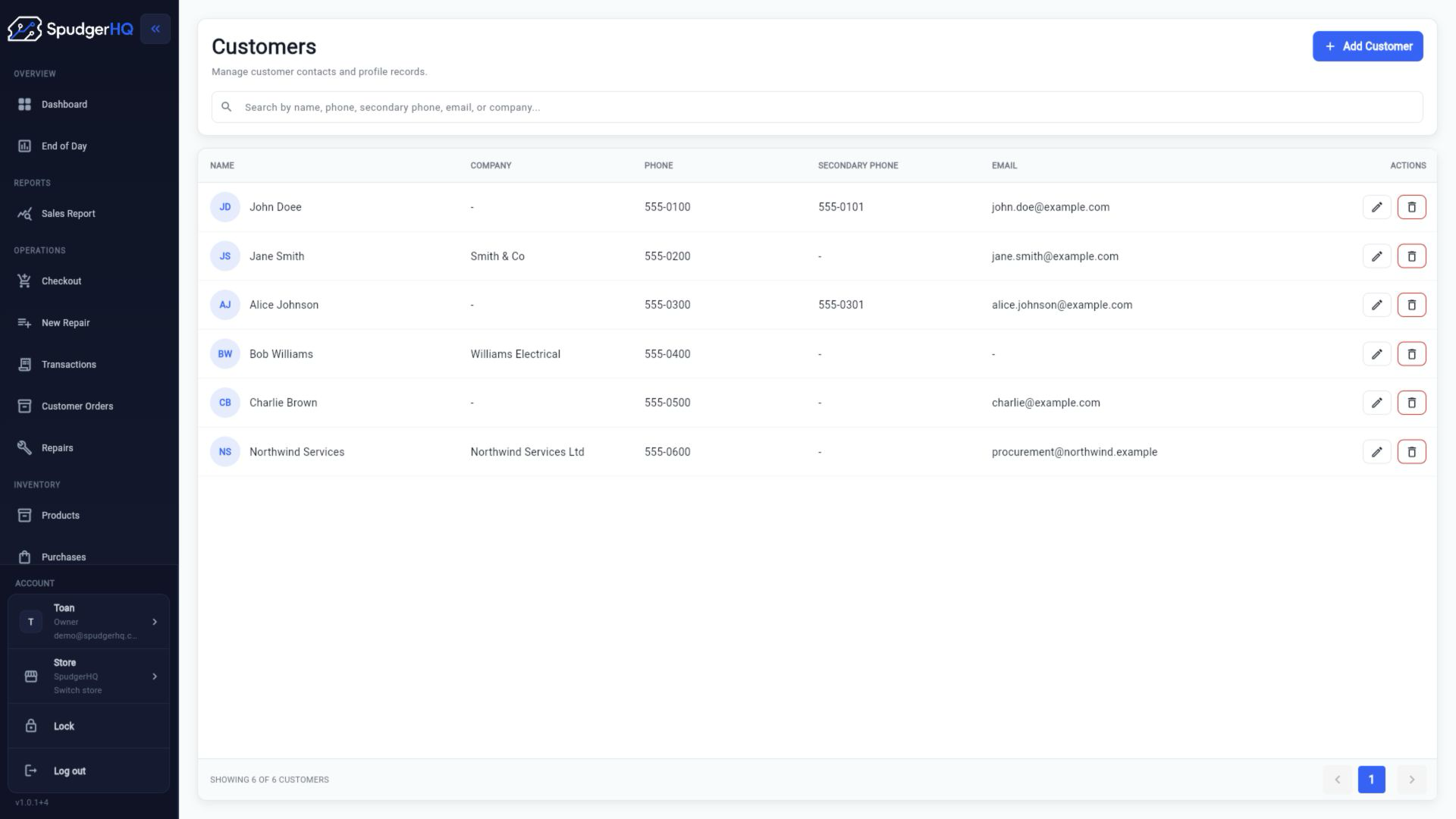
- Create and update customer records.
- Review customer sales, orders, and repair history.
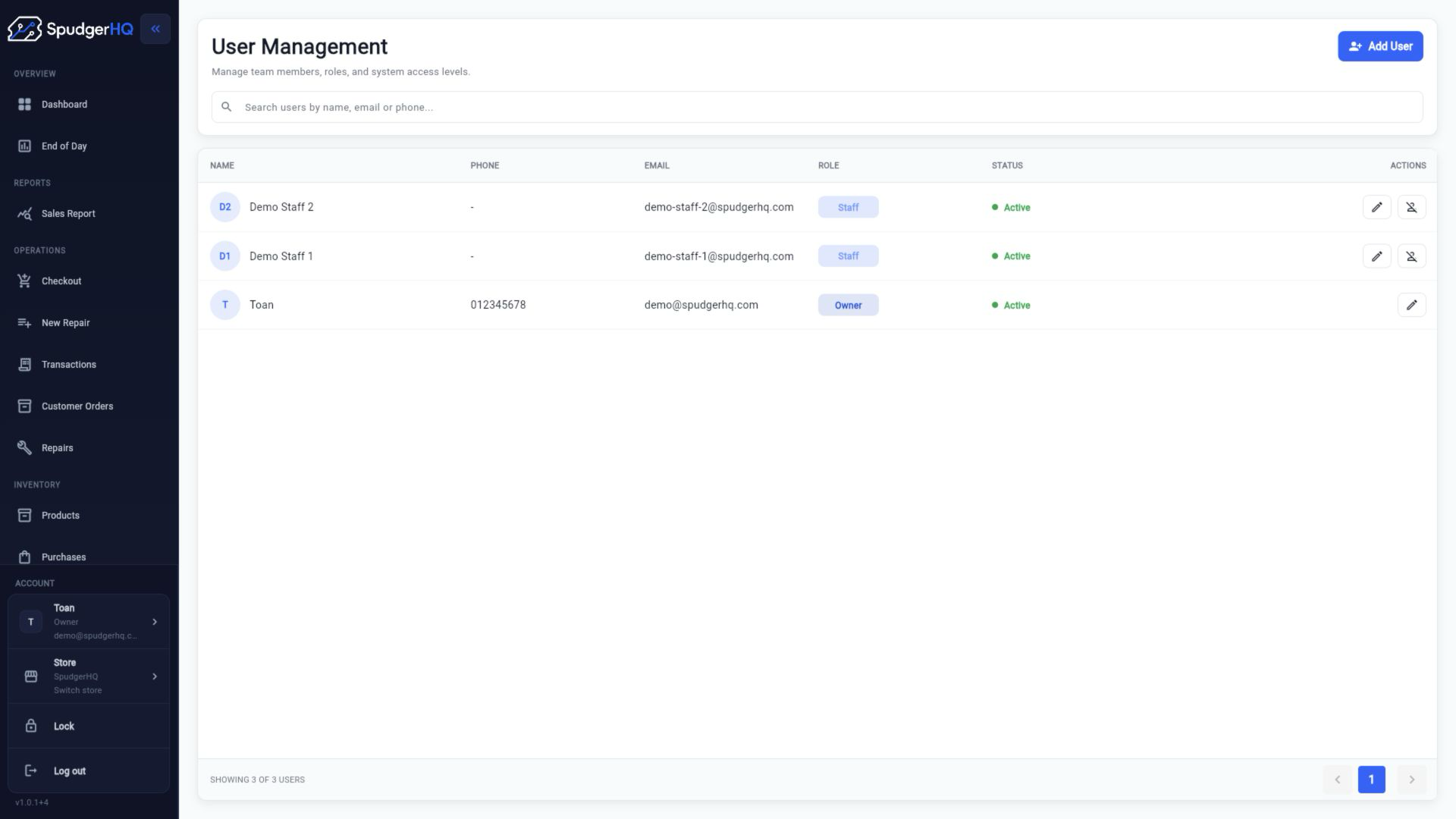
- Invite staff, resend invitations, change roles, and deactivate access.
- Update personal profile details and change a POS PIN when available.
Find the exact task
How do I add a customer?
Open Customers → Create, enter the customer details, and save the record.
- Open Customers.
- Choose Create Customer.
- Enter the available contact details and save.
Why am I seeing a possible duplicate customer?
SpudgerHQ may identify matching contact details so you can review an existing record before creating another one.
- Review the possible matches.
- Open the existing record when it is the correct customer.
- Continue creating a new record only when the customer is genuinely different.
How do I view a customer’s sales and repair history?
Open the customer profile to review linked sales, orders, repair jobs, and available activity details.
- Open Customers.
- Search for and select the customer.
- Review the activity and history sections on the profile.
How do I invite a staff member?
Open Users, choose the invite action, enter the staff member’s email and role, and send the invitation.
- Open Users.
- Choose Invite Staff.
- Enter the email and role, then send the invitation.
How do I resend a staff invitation?
Open the pending staff invitation from Users and use the resend action when it is available.
- Open Users.
- Find the pending invitation.
- Choose Resend Invitation and confirm.
How do I change a staff member’s role?
Open the staff profile, select the new available role, and save the change. The role controls the access the app grants.
- Open Users.
- Select the staff member.
- Choose the new role and save.
How do I deactivate or reactivate staff access?
Open the staff profile and use the access lifecycle action available for the current status.
- Open Users and select the staff member.
- Choose Deactivate or Reactivate.
- Confirm the change and ask the staff member to sign in again if needed.
Who can manage users?
Needs verificationUser-management actions are role-restricted. The current presentation model confirms that administrative actions are not available to every staff profile.
How do I change my POS PIN?
Needs verificationOpen your profile or staff access settings and use the POS PIN action when it is exposed for your account.
- Open Profile or the staff access surface.
- Choose Change POS PIN.
- Enter and confirm the new PIN.
Keep this context in mind
- Customer Orders require a named non-system customer.
- Staff access changes remain subject to role permissions and backend authorization.
- The complete permission matrix is distributed across route guards and backend authorization; this page lists only confirmed behavior.
Talk to the SpudgerHQ team.
Tell us what you expected to see and which workflow you were trying to complete.