
What you can do
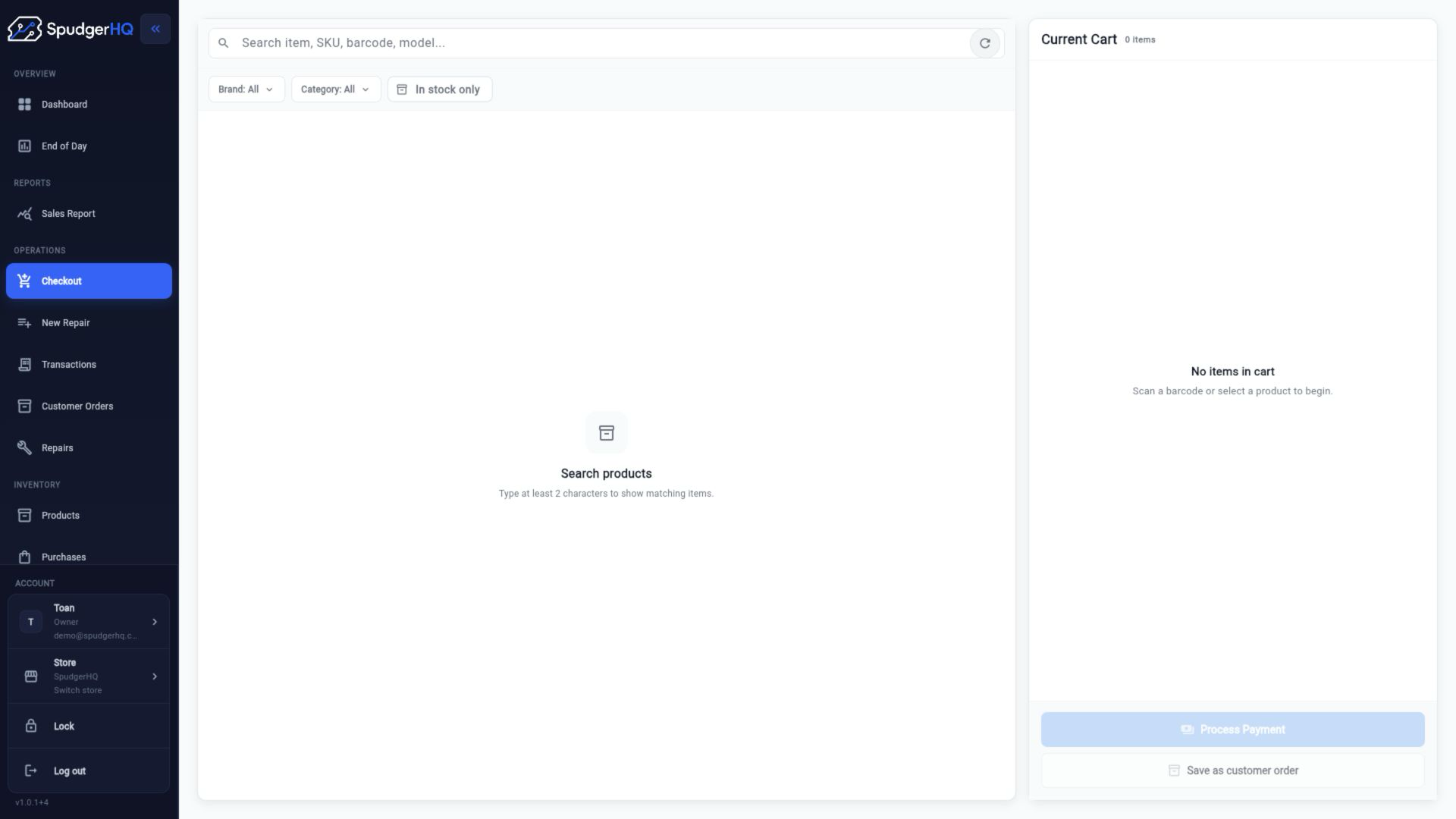
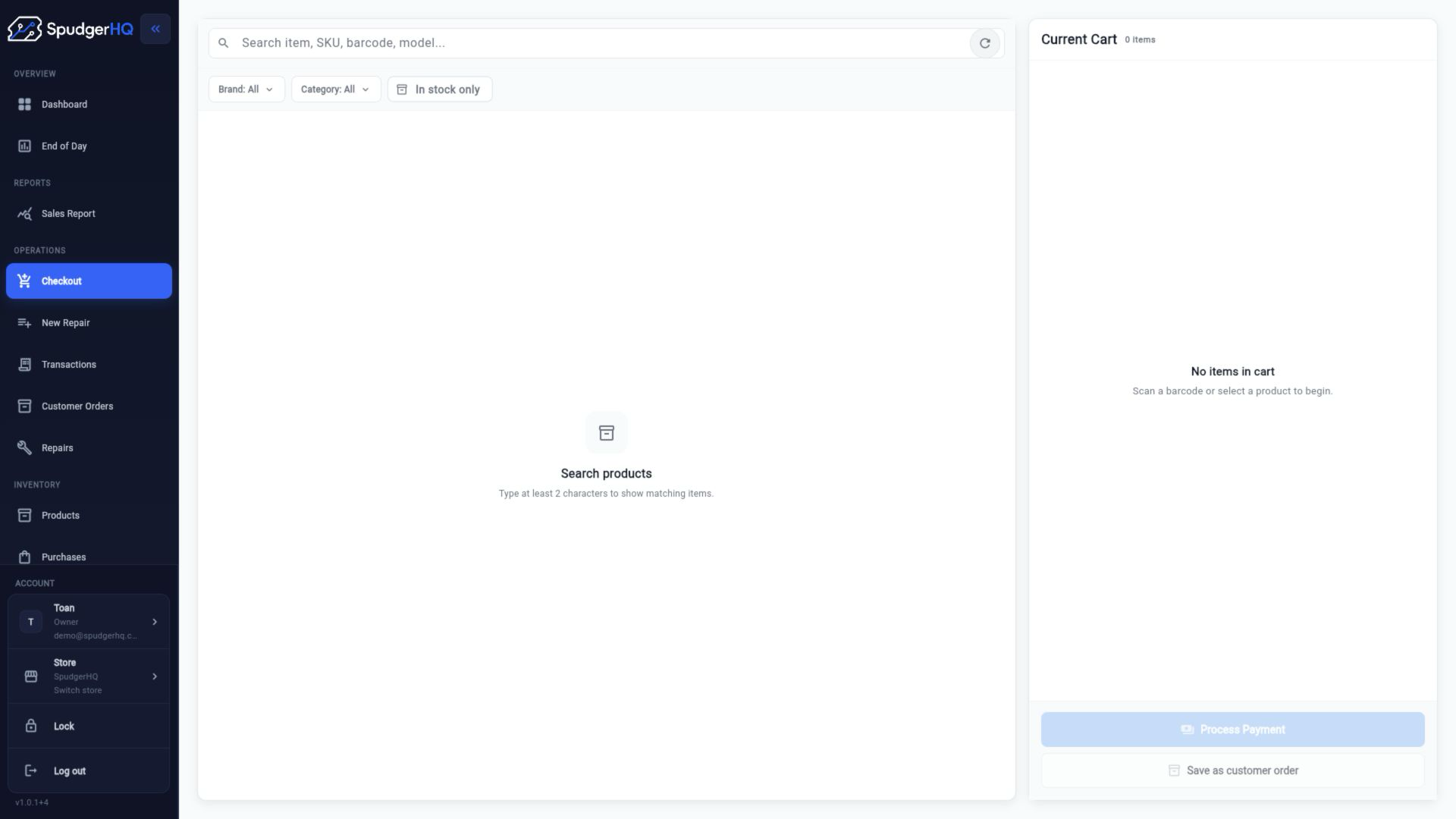
- Search products and add them to a cart.
- Sell serialized devices, apply discounts, and split payments.
- Collect supported payment methods and calculate cash change.
- Print a receipt or save a named cart as a Customer Order.
Find the exact task
How do I complete a sale?
Add products to the cart, review totals and discounts, choose a payment method, collect payment, and confirm the sale.
- Open POS.
- Search for products and add them to the cart.
- Choose payment, enter the amount, and complete the sale.
How do I search for a product at checkout?
Use the POS product search and enter the product name, code, or other available search value, then select the matching item.
- Open POS.
- Focus the product search.
- Enter a search value and select the correct product or asset.
How do I scan a barcode?
Needs verificationUse the barcode action exposed by POS when available, then confirm the returned product before adding it to the cart.
- Open POS and choose the barcode action.
- Scan or enter the barcode through the available device flow.
- Confirm the matched product and add it to the cart.
How do I sell a serialized device?
Add the device product, choose the exact available asset, and confirm the identifier before completing payment.
- Search for the device product.
- Select the exact IMEI or serial-number asset.
- Review the cart and complete the sale.
How do I apply a discount?
Use the discount action in the cart, enter the available discount value, review the updated total, and continue to payment.
- Add the items to the cart.
- Choose Discount.
- Enter the discount, review totals, and continue.
How do I split a payment?
Choose split payment, assign amounts to the available payment methods, and complete each portion until the full total is covered.
- Open payment from the cart.
- Choose Split Payment.
- Enter each payment portion and confirm the combined total.
Which payment methods are supported?
Use the payment methods displayed by the current checkout configuration. The available choices can vary with store and build configuration.
How do I handle cash change?
Select cash, enter the amount received, and review the calculated change before confirming the sale.
- Choose Cash at payment.
- Enter the amount received.
- Confirm the change amount and complete the sale.
How do I print a receipt?
Needs verificationAfter a completed sale, use the receipt action from the checkout confirmation or transaction detail.
- Complete the sale.
- Choose Print Receipt from the confirmation or transaction detail.
- Follow the browser or platform print dialog.
How do I save a cart as a customer order?
Choose the customer-order action from POS, attach a named customer, review the reservation or deposit details, and save the order.
- Build the cart in POS.
- Choose Save as Customer Order.
- Select or create the named customer and save the order.
Keep this context in mind
- A completed checkout creates a sale; saving a named cart creates a Customer Order instead.
- A serialized device sale must identify the exact available asset.
- The current presentation code shows barcode and print actions, but hardware scanner, printer, and cash-drawer integration details are not assumed.
Talk to the SpudgerHQ team.
Tell us what you expected to see and which workflow you were trying to complete.