
What you can do
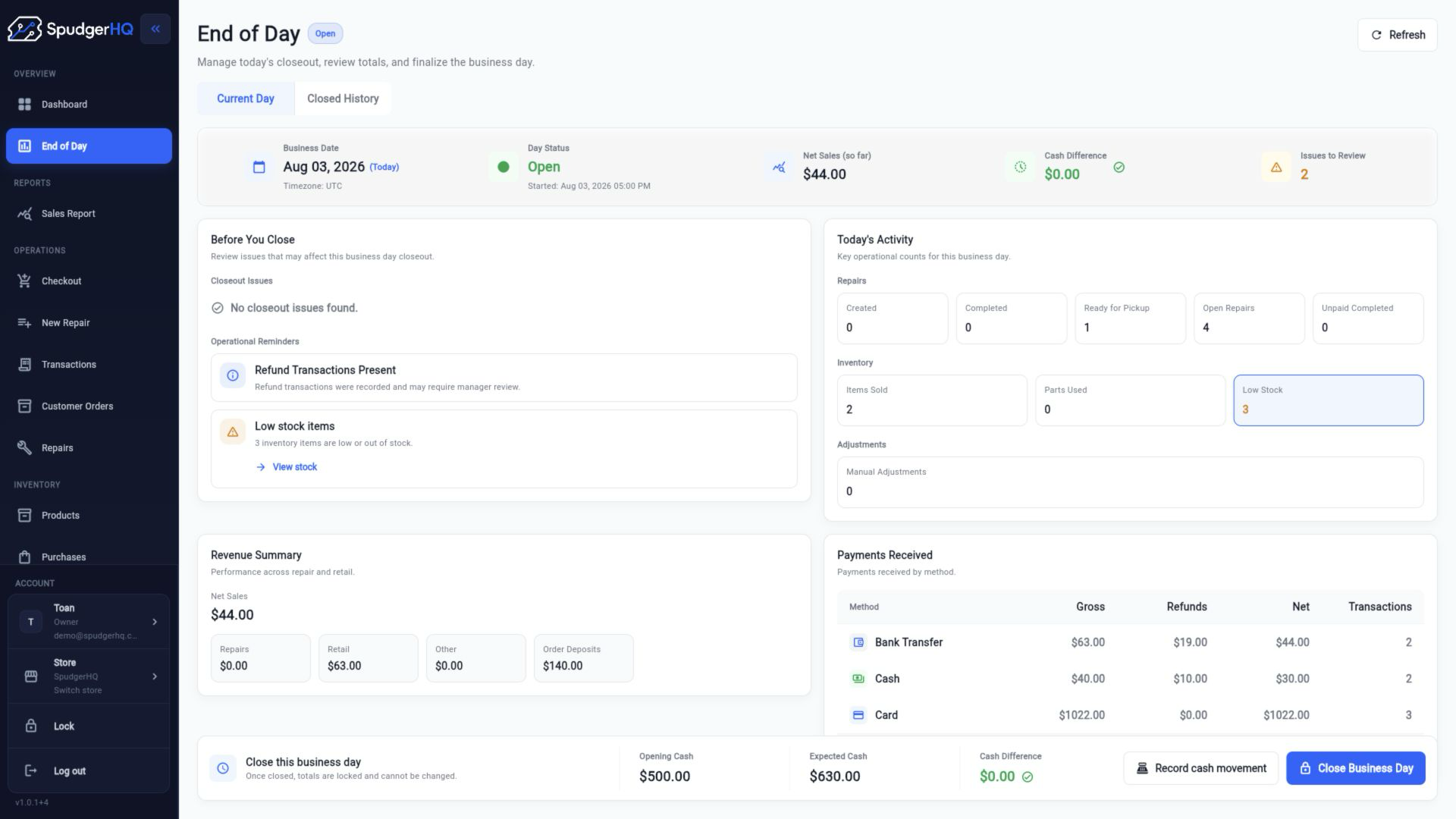
- Review operational KPIs, alerts, cash activity, and current-day status.
- Record cash movements and count cash using configured notes and coins.
- Close the current business day and inspect closed-day history.
- Export a historical end-of-day report.
Find the exact task
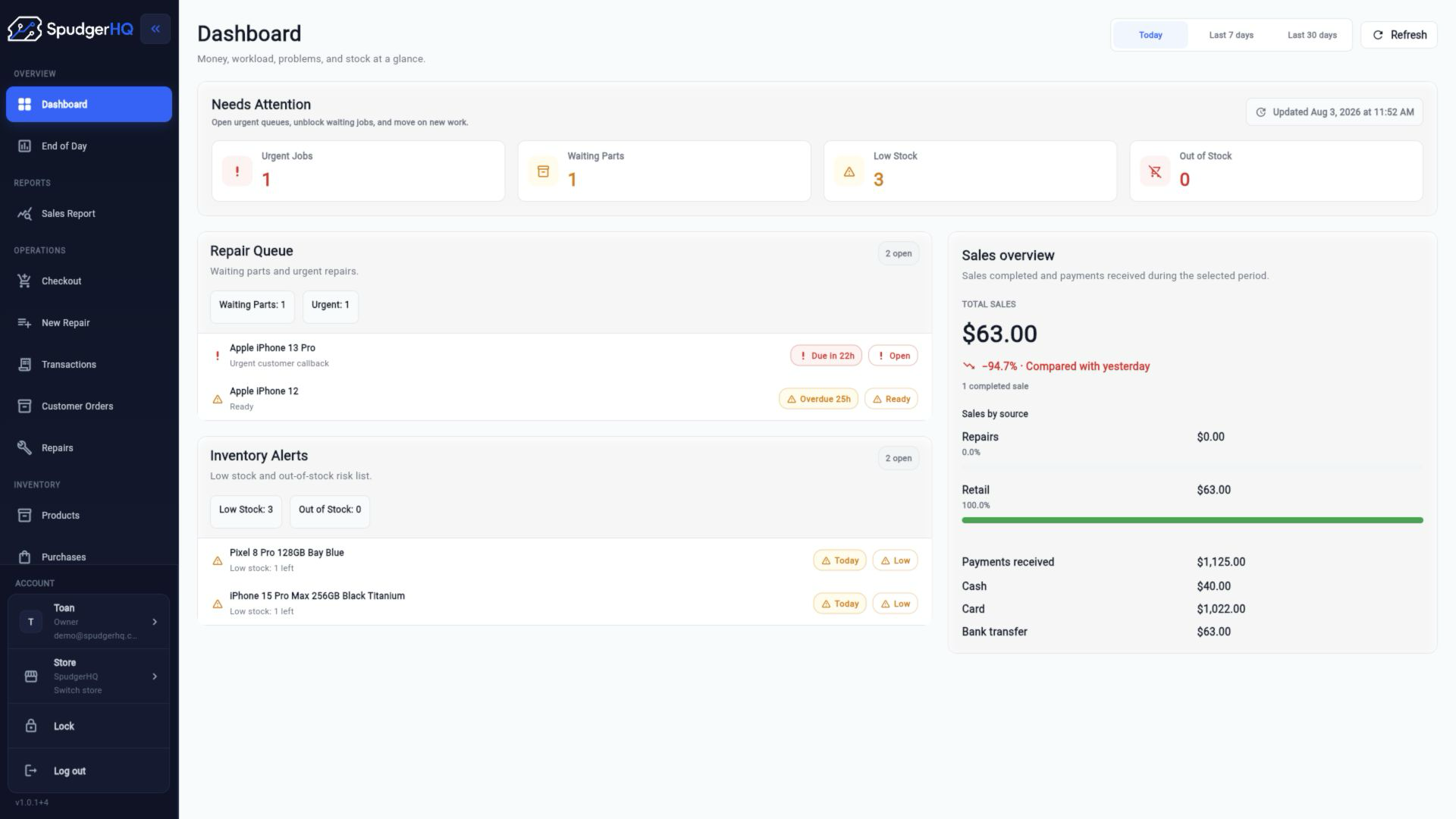
What does the dashboard show?
The dashboard brings together store-local activity such as sales, repairs, cash movement, alerts, and current business-day status.
- Open Dashboard.
- Review the KPI and alert cards for the selected business day.
- Open the relevant detail or end-of-day action when you need to investigate.
How do I review today’s store performance?
Open the dashboard for the current store and review the displayed sales, repair, cash, and operational summary cards.
- Confirm the correct store is selected.
- Open Dashboard.
- Review the current-day summary and open supporting details as needed.
How do I record a cash movement?
Use the cash movement action from the dashboard or End of Day flow and record the amount and reason before saving.
- Open the current End of Day workspace.
- Choose the cash movement action.
- Enter the amount and reason, then save the movement.
How do I close the business day?
Review the day’s expected cash, enter the counted cash, resolve any required notes, and confirm the closeout.
- Open End of Day.
- Review the sales and cash summary.
- Count and enter the cash, then confirm the business-day close.
How do I count cash using notes and coins?
Enter the quantity for each configured denomination. SpudgerHQ uses those quantities to calculate the counted cash total.
- Open the cash-counting section of End of Day.
- Enter quantities for each note and coin row.
- Review the calculated total before submitting the count.
What is the difference between expected and counted cash?
Expected cash is the amount calculated from recorded activity. Counted cash is the physical amount entered during the closeout.
How do I view previous business days?
Open End-of-Day History, choose a closed business day, and open its detail view to review the stored closeout snapshot.
- Open End-of-Day History.
- Find the business day you need.
- Open the row or card to view its details.
How do I export an end-of-day report?
Open a historical business-day detail view and use its export action to save the available report for that closeout.
- Open End-of-Day History.
- Choose the business day.
- Use Export from the detail view and save the generated file.
How does the store timezone affect business days?
The store timezone determines the local date boundaries used by the dashboard, reports, and End of Day.
- Open Settings → Regional & tax.
- Confirm the store timezone.
- Use that local timezone when interpreting day-based totals and closeout dates.
Keep this context in mind
- Business-day dates and dashboard periods use the store timezone.
- Expected cash is the system calculation; counted cash is the amount entered during closeout.
- The dashboard is the operational source for the labels and values currently displayed by the store.
Talk to the SpudgerHQ team.
Tell us what you expected to see and which workflow you were trying to complete.