
What you can do
- Sign in, register a business, and recover access.
- Create or select a store before opening the workspace.
- Lock the workspace, switch staff profiles, and sign out safely.
- Update personal profile details and access information.
Find the exact task
How do I sign in?
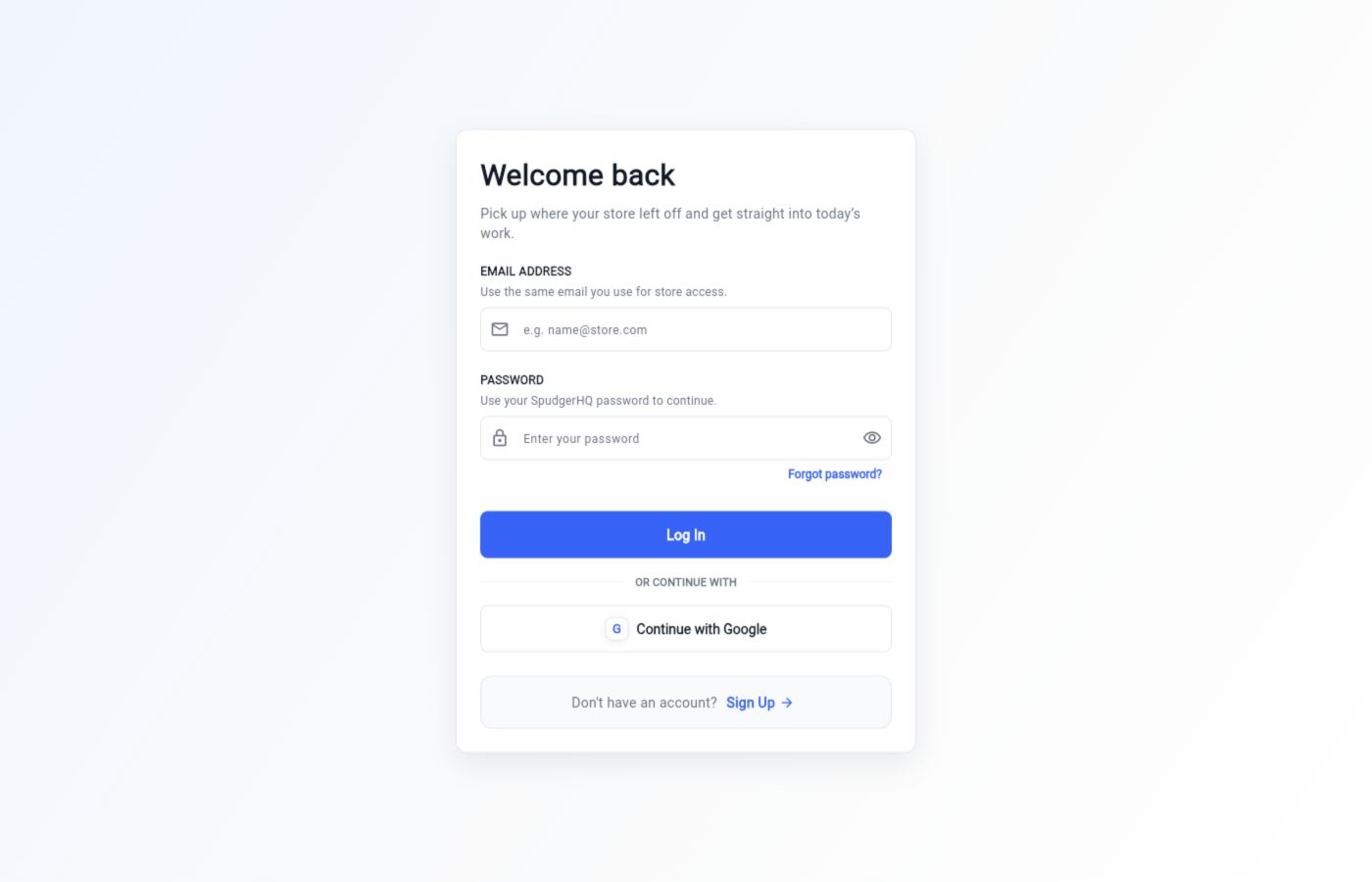
Open the SpudgerHQ login page and enter the email address and password for your account.
- Open Login.
- Enter your account email and password.
- Submit the form, then choose a store if your account belongs to more than one.
How do I register a new business?
Use Register to create your account, then follow the first-store setup flow to enter the business details needed for the workspace.
- Open Register.
- Complete the account fields and submit.
- Create your first store when the setup flow asks for business information.
How do I join an existing store team?
Accept the staff invitation sent by the store team, finish account setup, and select the invited store after signing in.
- Open the invitation link.
- Create or confirm your account details.
- Sign in and choose the store from Client Selection.
How do I reset my password?
Use Forgot password to request an account recovery email, then follow the action link to set a new password.
- Open Forgot password.
- Enter the email address for your account.
- Open the recovery email and complete the password action.
How do I select the correct store?
After authentication, choose the store you want to work in from the client-selection screen. Store-local data and permissions follow that choice.
- Review the stores available to your account.
- Select the store you are working in.
- Confirm the workspace opens with the expected store context.
How do I create my first store?
New accounts create a first store during shop setup. Enter the store identity and regional details, then save the setup before inviting staff.
- Open Shop Setup after registering.
- Enter the store name and address.
- Save the store, then configure regional settings when needed.
Why am I seeing “No access”?
The account is signed in but does not currently have an available store membership. Ask the store owner or administrator to confirm the invitation and role.
- Confirm that you signed in with the invited email address.
- Ask the owner or administrator to review your staff access.
- Sign out and sign back in after access is corrected.
How do I lock and unlock the workspace?
Use the workspace lock action when stepping away from the counter. Unlock it with the required staff access check before continuing.
- Choose Lock Workspace from the current staff session.
- Leave the workspace locked while it is unattended.
- Complete the unlock prompt when returning.
How do I switch staff profiles?
Use the staff-session switcher to change the active staff profile without changing the selected store.
- Open the staff profile or session menu.
- Choose the staff member who is taking over.
- Complete the PIN or access check if requested.
How do I update my personal profile?
Open Profile to update the personal details and access information available to your account.
- Open Profile from the account or More area.
- Edit the available personal fields.
- Save the profile changes and confirm the updated values.
Keep this context in mind
- A user must have access to a store before store data can be opened.
- Invited staff should use the invitation flow and then complete their own profile setup.
- A No access message means the account is authenticated but has no usable store membership.
Talk to the SpudgerHQ team.
Tell us what you expected to see and which workflow you were trying to complete.