
What you can do
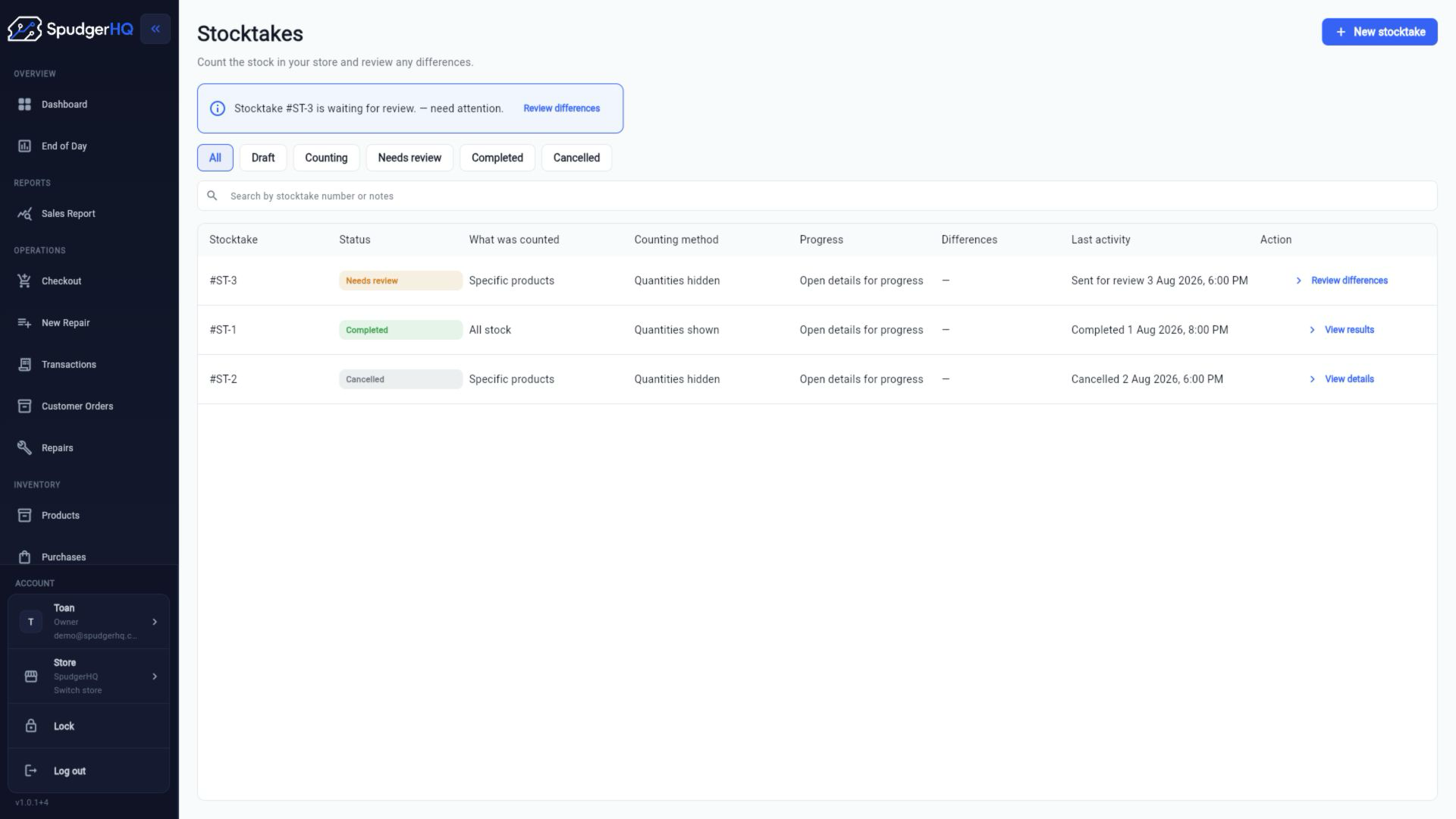
- Create full or selected-product stocktakes.
- Choose Blind or Guided counting.
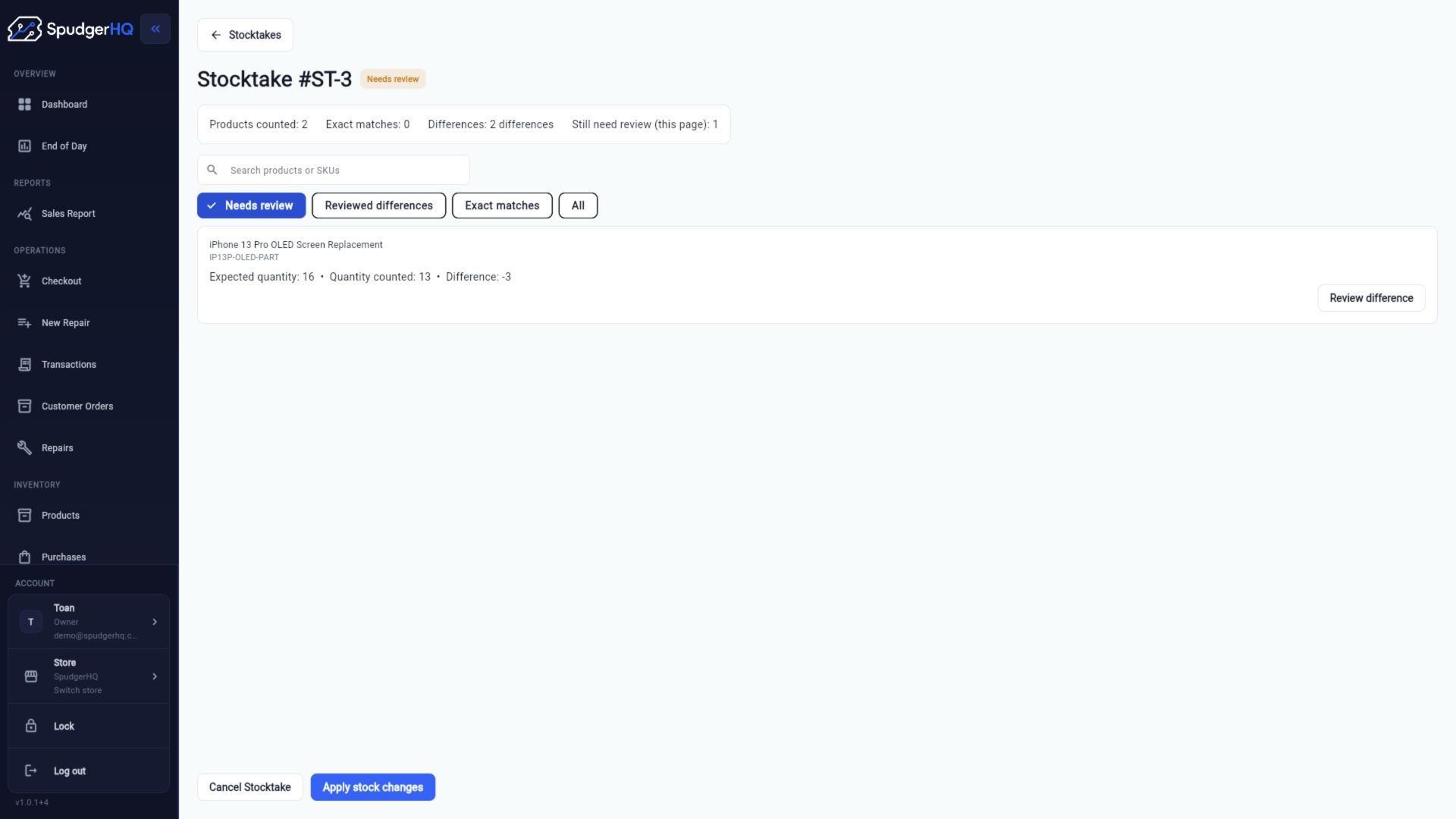
- Save counts, submit for review, and inspect variance summaries.
- Resolve differences, complete approved counts, or cancel eligible stocktakes.
Find the exact task
How do I create a stocktake?
Open Stocktakes → New Stocktake, choose the scope and counting mode, select products when needed, and create the count.
- Open Stocktakes.
- Choose New Stocktake.
- Choose Full or Selected products, choose Blind or Guided, then create.
What is the difference between blind and guided counting?
Blind counting hides the expected quantity while you count. Guided counting shows the expected quantity during the count.
What is the difference between a full and selected-products stocktake?
A full stocktake includes the full eligible inventory scope. A selected-products stocktake limits the count to products you choose.
How do I enter stock counts?
Open a draft or counting stocktake, enter the physical quantity for each line, and save as you move through the count.
- Open the stocktake.
- Start counting when the draft is ready.
- Enter each quantity and save the count.
How do I submit a stocktake for review?
Complete the count for the available lines, review the summary, and choose Submit for Review.
- Finish entering quantities.
- Review counted, expected, changed, and exact-match values.
- Submit the stocktake for review.
How do I resolve a stock variance?
Open a stocktake in Review, inspect the differences, and enter a reason and required notes for each variance before completing the review.
- Open the stocktake in Review.
- Inspect the variance lines.
- Enter the reason and notes, then complete the review.
Who can approve or complete a stocktake?
Admin and Owner roles can perform the review, variance resolution, completion, and cancellation actions enforced by the current stocktake module.
How do I cancel a stocktake?
Open an eligible Draft, Counting, or Review stocktake, choose Cancel, enter a reason, and confirm.
- Open the stocktake.
- Choose Cancel when the status allows it.
- Enter the cancellation reason and confirm.
Why is a completed stocktake read-only?
Completion creates a final inventory correction snapshot. The completed record remains available for review but is no longer editable.
What should I do after a stale-version conflict?
Refresh the current stocktake, review the latest counts and status, and retry only after the current version is loaded.
- Stop editing when the conflict appears.
- Refresh or reopen the stocktake.
- Review the latest state and retry the action.
Keep this context in mind
- Blind counting hides expected quantities during counting; Guided counting shows them.
- Only Admin or Owner can review, resolve variances, complete, or cancel stocktakes in the current module.
- Completed and cancelled stocktakes are read-only. Stale-version errors require refreshing the current stocktake.
Talk to the SpudgerHQ team.
Tell us what you expected to see and which workflow you were trying to complete.