
What you can do
- Create a future-fulfillment commitment for a named customer.
- Reserve stock or an exact serialized device asset.
- Record deposits, balance payments, refunds, and backordered lines.
- Mark an order ready, complete fulfillment, or cancel it when permitted.
Find the exact task
What is the difference between a sale and a customer order?
A sale is completed at checkout. A Customer Order records a future fulfillment commitment that can reserve stock and collect money before pickup or completion.
How do I create a customer order?
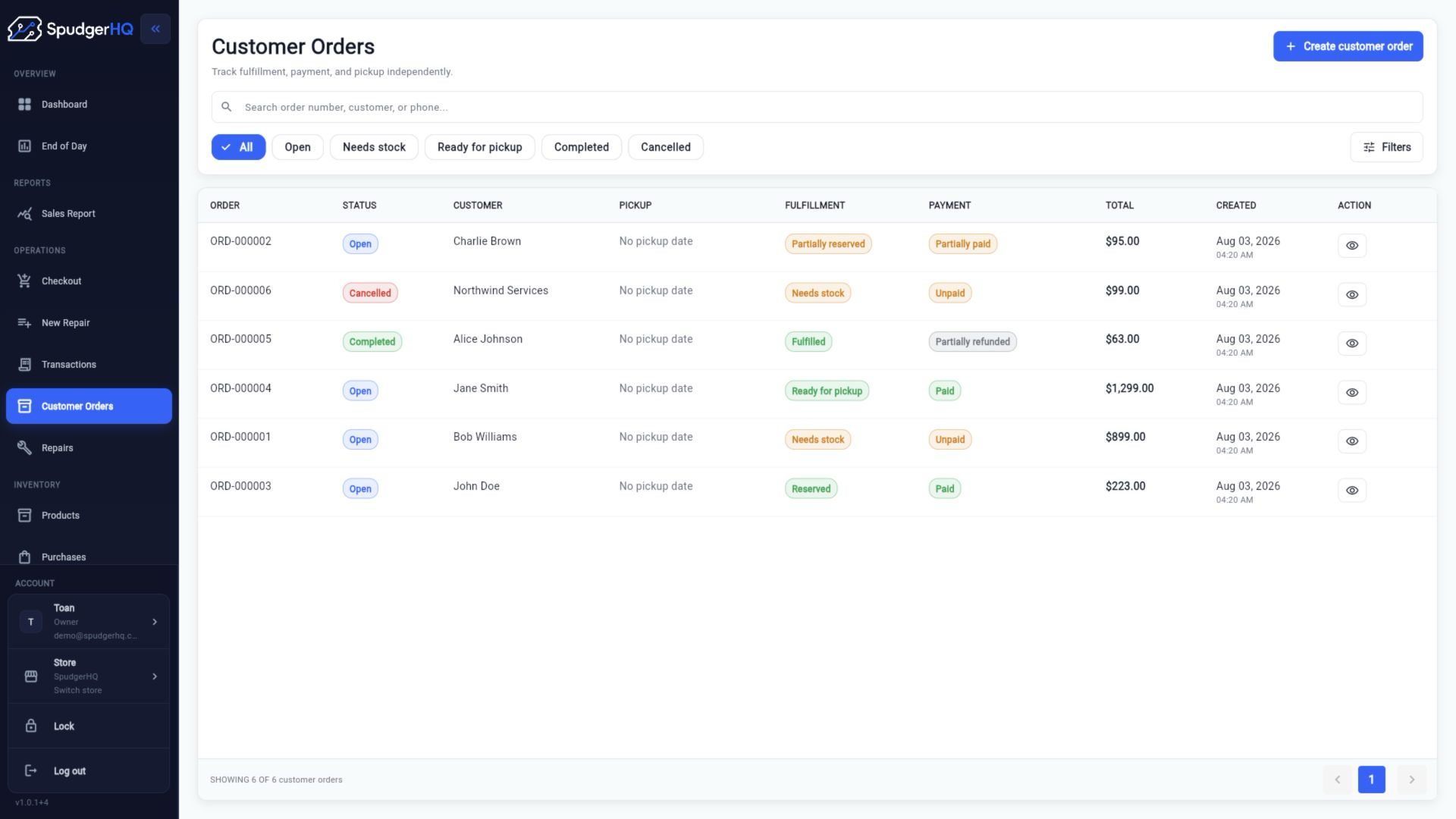
Open Customer Orders → Create, select a named customer, add products or services, and save the order.
- Open Customer Orders.
- Choose Create Order.
- Select a named customer, add the lines, and save.
Why does an order require a named customer?
An order needs an accountable customer record for reservation, payment, pickup, and later history. Anonymous or system customers cannot own the commitment.
How do I reserve stock for an order?
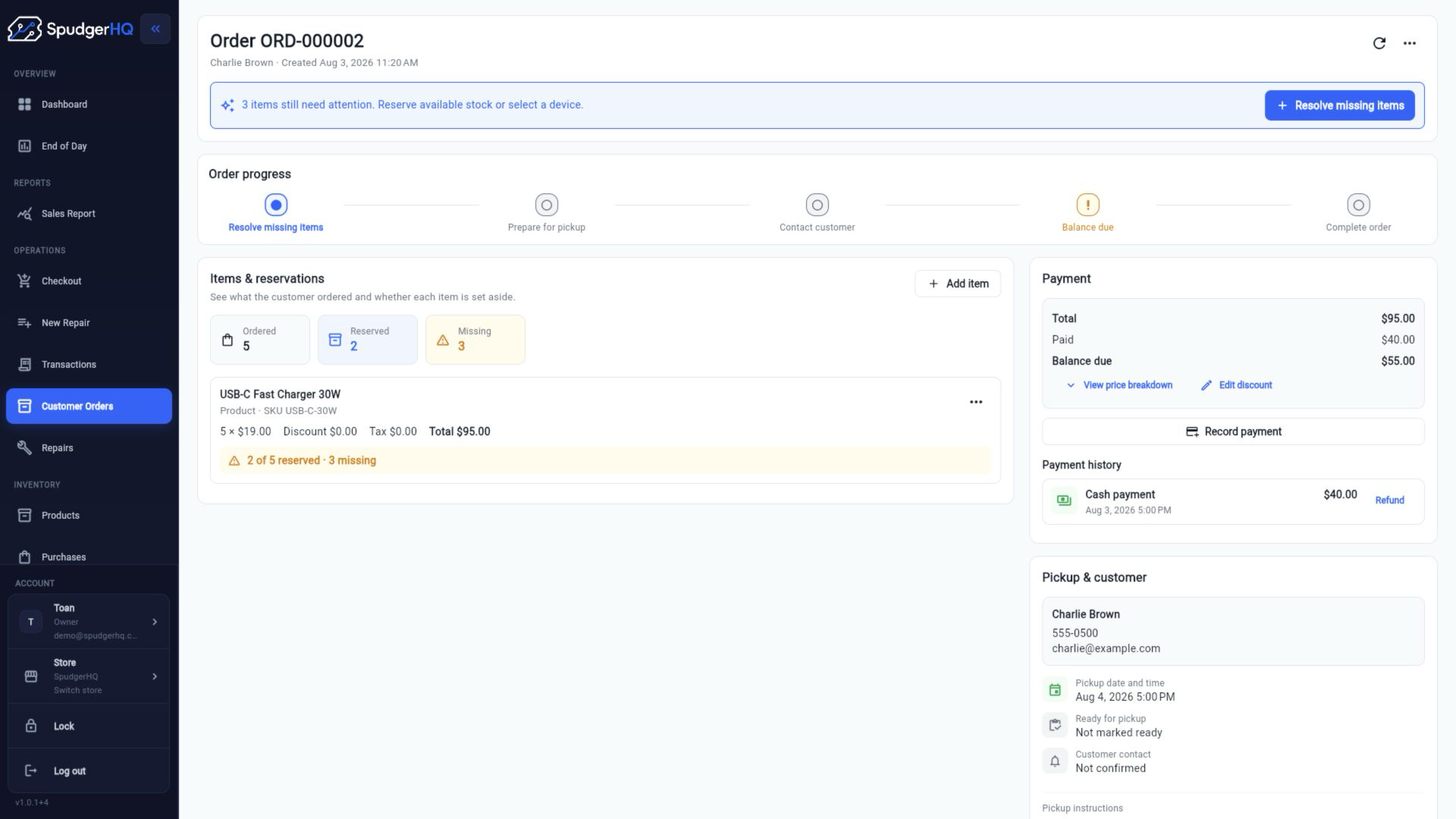
Add the required product lines and save or update the order. SpudgerHQ reserves eligible stock according to the order state and available quantity.
- Open or create the order.
- Add the product and required quantity.
- Save the order and review the reservation state on the detail view.
How do I reserve an exact device asset?
For a serialized device line, select the exact available IMEI or serial-number asset before saving the order.
- Add the device product.
- Open the asset selector.
- Choose the exact available asset and save the order.
How do I add a device backorder?
Add the device line when the exact asset is not available and leave it in the backorder state exposed by the order workflow.
- Open the order.
- Add the required device product.
- Use the backorder option when no eligible asset can be reserved.
How do I collect a deposit or balance payment?
Open the order payment action, enter the amount being collected, choose the payment method, and confirm the payment.
- Open the order detail.
- Choose Add Payment.
- Enter the deposit or balance amount and confirm.
How do I refund an order payment?
Open the payment history on the order, choose the eligible refund action, enter the amount or reason requested, and confirm.
- Open the order detail.
- Find the payment to refund.
- Choose Refund and confirm the requested amount and reason.
How do I mark an order ready?
Open the order after its required lines are available, then use the ready action to move it into pickup-ready status.
- Open Customer Orders.
- Open the order detail.
- Confirm availability, then choose Mark Ready.
How do I complete or cancel an order?
Complete an order after fulfillment and payment are resolved. Cancel an eligible order from its detail view and provide the requested reason.
- Open the order detail.
- Review the current status and outstanding balance.
- Choose Complete or Cancel, then confirm the action.
What should I do after a payment or concurrency error?
Refresh the order and review its current payment, reservation, and status before trying again. Do not repeat a payment until the latest state is visible.
- Stop and note the error message.
- Refresh or reopen the order detail.
- Confirm whether the payment or reservation already succeeded before retrying.
Keep this context in mind
- A Customer Order is a future fulfillment commitment; a completed sale is a completed checkout transaction.
- Orders require a named non-system customer.
- Reservation, payment, and completion mutations remain subject to current stock, role, billing, and backend concurrency checks.
Talk to the SpudgerHQ team.
Tell us what you expected to see and which workflow you were trying to complete.