
What “Waiting for Parts” should mean
Use this status for one specific blocked-repair condition, not for every job that is temporarily idle.
Waiting for Parts should mean that diagnosis or repair has reached a point where work cannot continue, the required part is known, and that part is not currently available for this job. The repair now needs a stock or purchasing action before the technician can continue.
That narrow meaning matters because the status should tell the next person what kind of action is missing. For the broader set of repair status definitions and stage choices, use the repair status tracking guide. This guide focuses only on the missing-part exception inside that larger model.
- Good use: the technician has identified the part and cannot safely continue without it.
- Not for customer approval: use the shop’s approval step when the customer must decide before work continues.
- Not for technician availability: record ownership or scheduling separately from the missing-part condition.
- Not for customer pickup: a completed repair waiting for pickup needs a ready-for-pickup or equivalent stage.
- Not for an unpaid completed repair: payment or closeout is a different operational issue.
Confirm the required part before pausing the repair
The waiting status is only useful when the next person can tell exactly what is missing and why.
Before moving the repair into Waiting for Parts, the technician or front-desk owner should confirm the exact part required for the device and the repair path. This is not a second full diagnosis. It is a handoff check that turns “needs a part” into an actionable purchasing request.
Record enough context for another staff member to identify the correct item without restarting the investigation. If the part changes the price, repair scope, or expected timing, flag that for the customer-approval decision rather than burying the change in a parts note.
- Exact required part, including the relevant assembly or variant
- Compatible device, model, storage, color, or other identifying detail where it affects fit
- Quantity needed for this repair
- Relevant technician note explaining why the part is required
- Whether another usable item is already available in the shop
- Whether the requested repair scope or quoted price has changed
Check usable stock first
A blocked repair does not always need a new order. Confirm what is actually usable before buying another item.
Once the required part is identified, check the shop’s current stock before starting a purchase. The decision is simple: if a compatible, usable part is available, follow the shop’s normal assignment and repair process; if no usable part is available, begin the ordering process and keep the job waiting.
Keep this check limited to the blocked repair. The broader guide on repair shop inventory tracking covers item identity, stock movement, receiving, adjustments, counts, and replenishment. Here, the question is only whether the right part can be used for this job now.
- Confirm the item matches the device and required repair.
- Separate available stock from damaged, defective, reserved, or otherwise unusable items.
- Check whether a compatible part is already on order before creating a duplicate request.
- If usable stock exists, record or assign it using the shop’s normal repair process.
- If no usable stock exists, continue to Waiting for Parts and purchasing.
Move the repair into Waiting for Parts
The status change should leave the shop with a visible repair and a clear next action.
After the stock check confirms that the repair cannot continue, move the existing repair into Waiting for Parts rather than creating a second holding record. The repair ticket remains the home for the device and customer context; the waiting status explains why bench work has stopped.
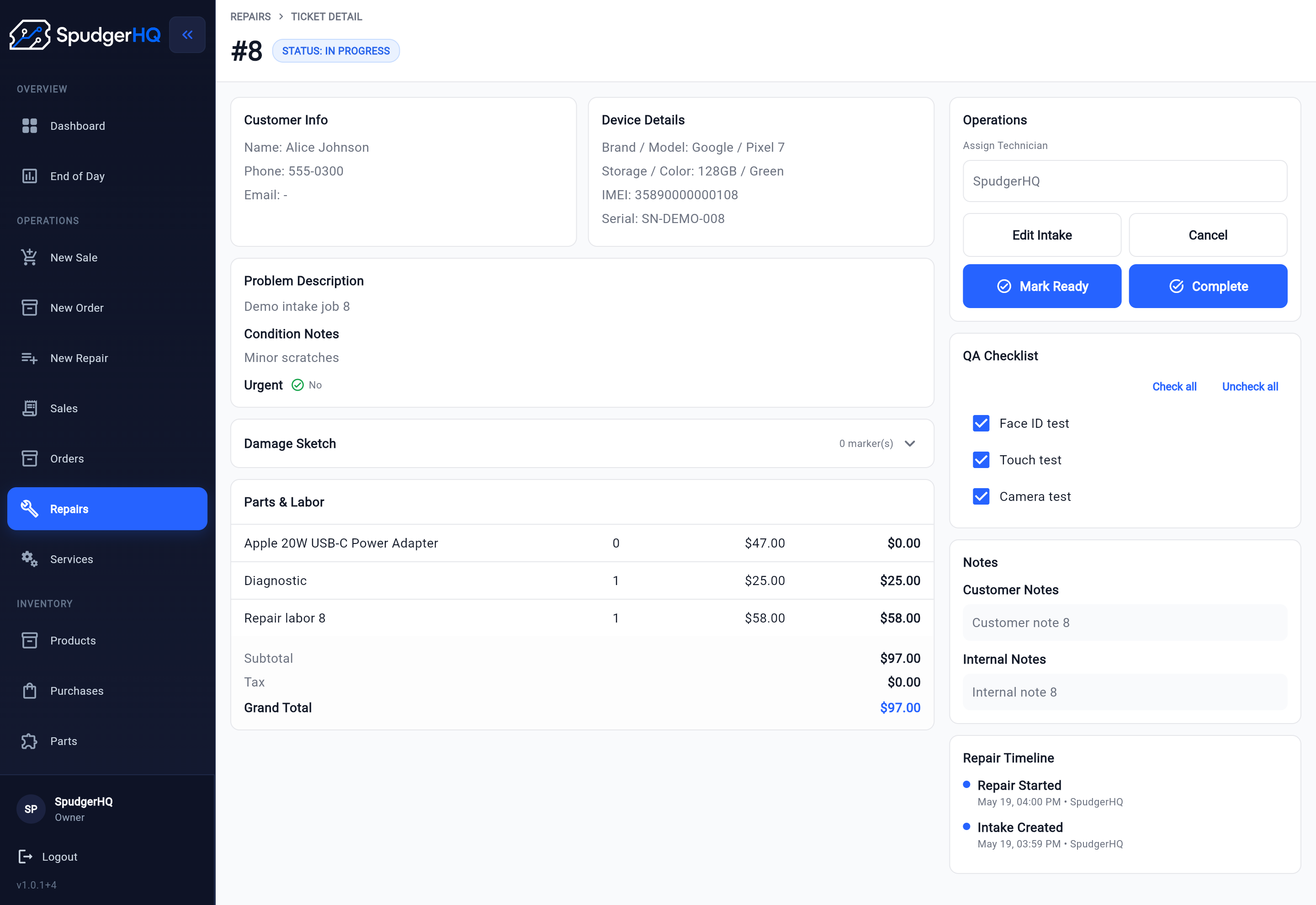
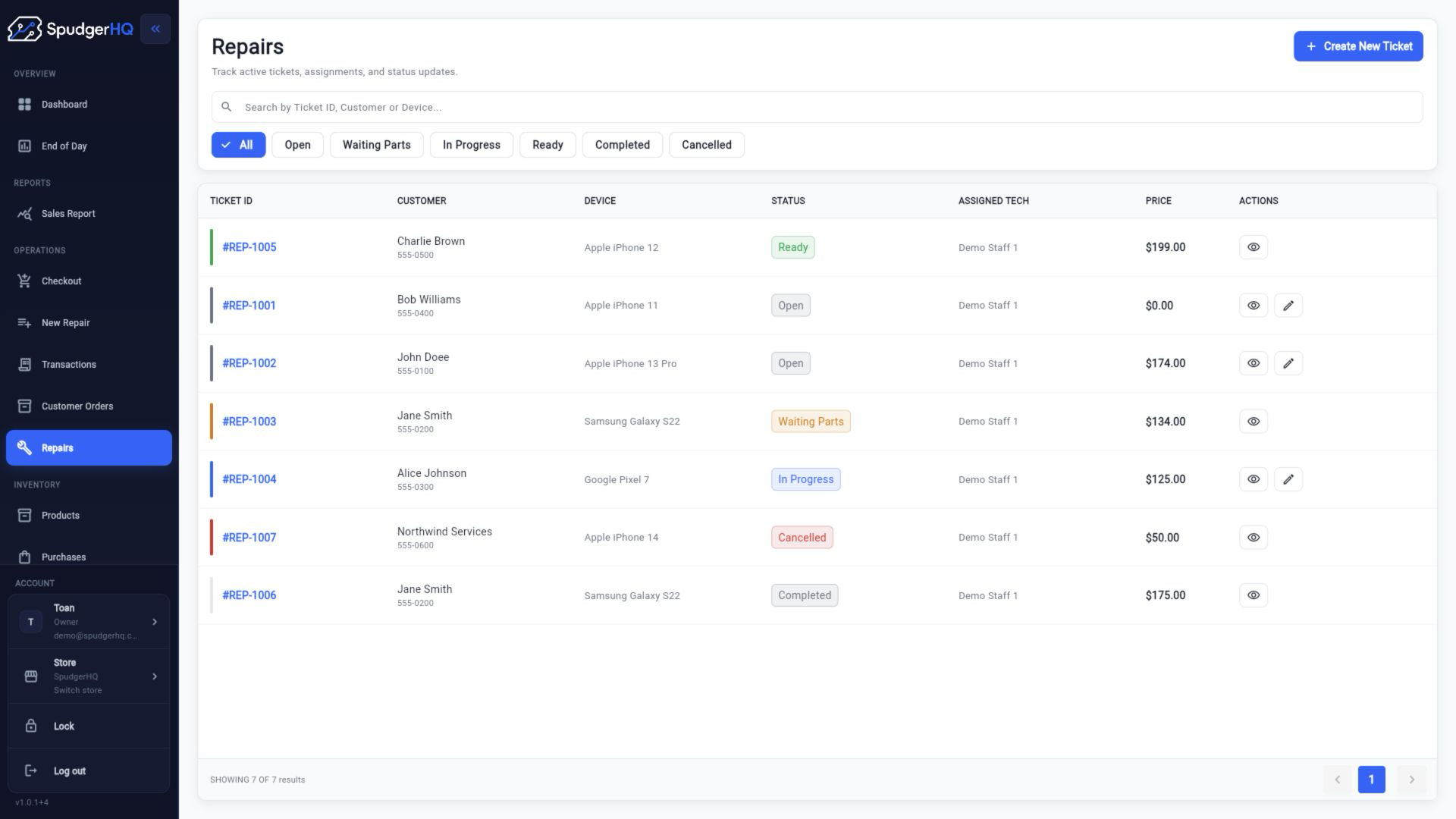
Use the fields available in the SpudgerHQ repair workflow as practical examples: the repair list shows ticket ID, customer, device, status, assigned technician, and price. The repair detail view shows customer and device information, parts and labor, operations, QA, notes, and a repair timeline. Shop-specific next-action notes, purchase references, and customer expectations remain process decisions that the team should record wherever its workflow supports them.
- Existing repair ticket and customer/device identity
- Required part and quantity
- Why the repair stopped
- Current order state, once an order exists
- Supplier, if one has been selected
- Person responsible for the next action
- Customer expectation or next update point, when the delay affects timing
Decide whether customer approval is needed
A missing part can turn into an approval issue when it changes what the customer is being asked to accept.
Pause for a customer-approval check when the newly identified part changes the repair price, the part selection, the expected completion time, or the repair scope. The shop should follow its own approval limits and obtain the customer’s decision before ordering or proceeding when policy requires it.
Keep this check brief here. The customer approval workflow guide covers how to explain scope changes, record the answer, and update the next repair step. Waiting for Parts should not become a second approval guide.
- Does the part change the agreed price or service path?
- Does the customer need to choose between part or repair options?
- Has the expected completion timing changed enough to reset expectations?
- Has the shop recorded the decision before ordering or continuing?
Create or track the purchase
The purchasing record should explain what is being bought, from whom, and which blocked work needs it.
Once the shop knows the correct part can be ordered, decide whether to buy it alone or include it with other genuine stock needs. Record the item, compatible variant, quantity, supplier, purchase state, and any order reference the receiving person will need later.
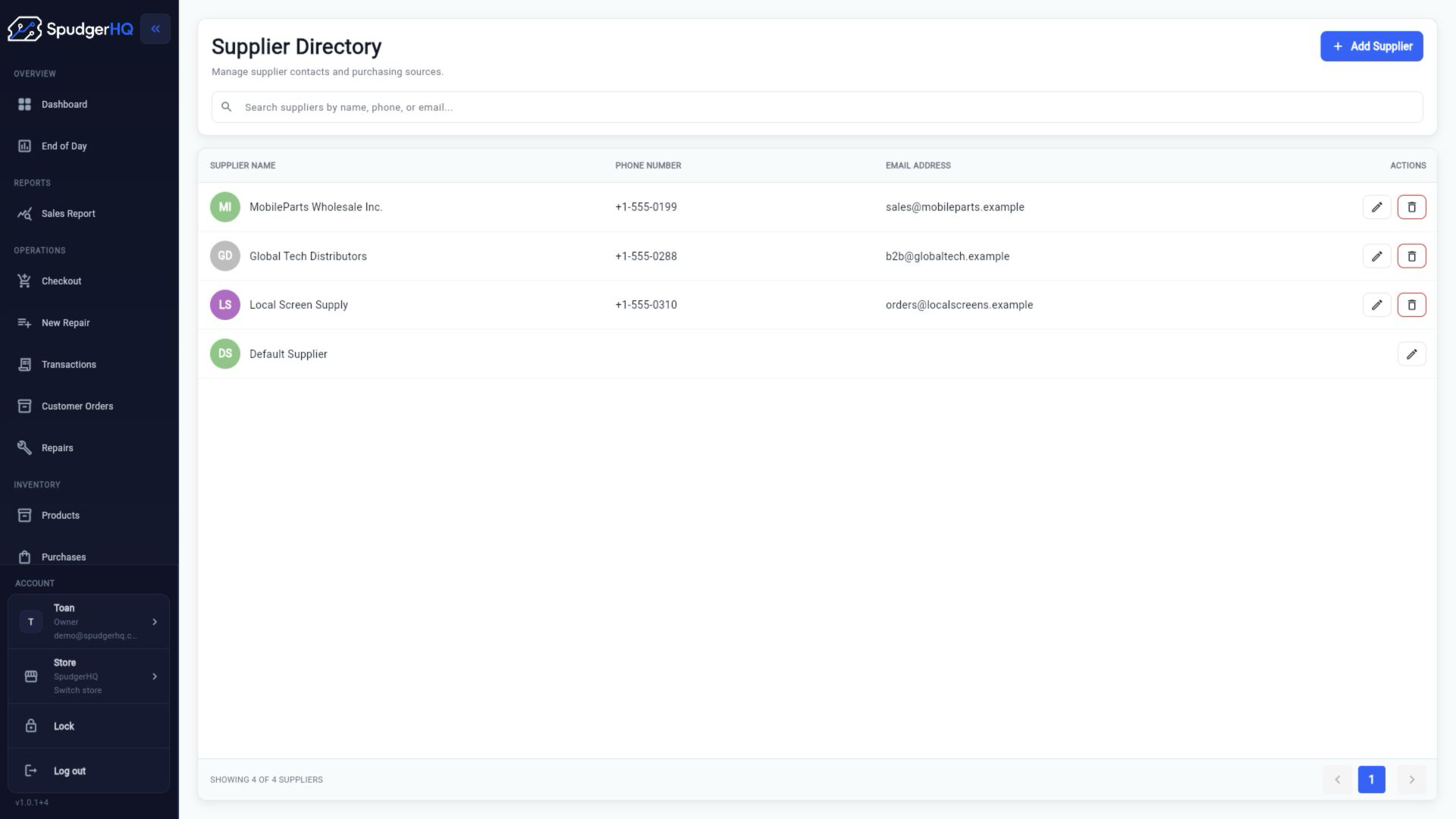
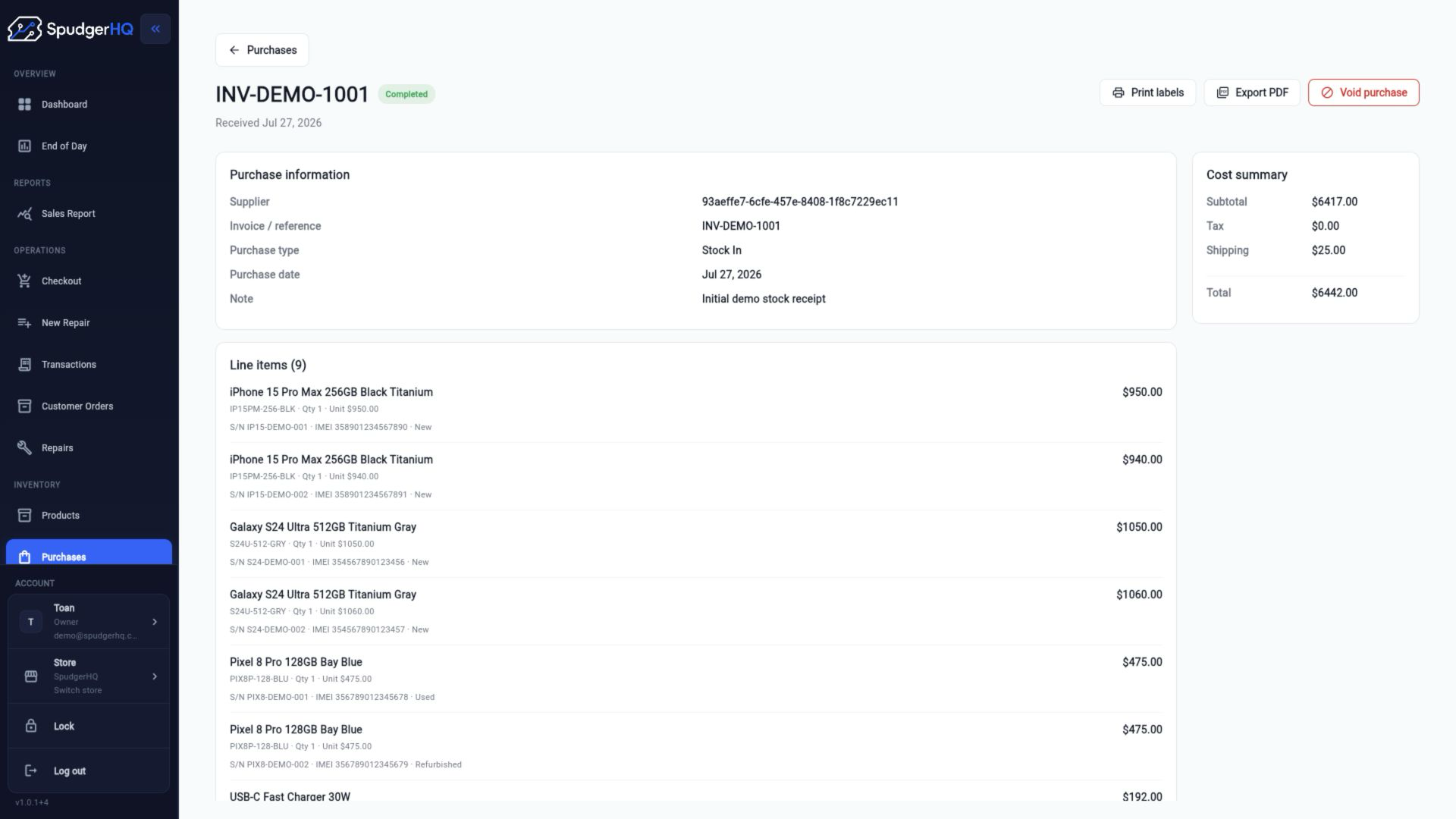
SpudgerHQ includes a Supplier Directory for supplier contacts and purchasing sources, plus purchase details with supplier, invoice or reference, purchase type, purchase date, note, line items, and cost summary. Those views give staff a consistent place to keep purchasing information organized. They do not automatically link a purchase to a repair, so keep the blocked repair relationship explicit in the shop’s notes, reference, or agreed handoff process rather than assuming the system creates it for you.
- What part and compatible variant is being ordered
- Quantity required for the blocked repair
- Supplier and purchase reference
- Current purchase or receiving state
- Which repair ticket needs the item
- Whether other items are included in the same purchase
Keep the repair visible while waiting
A waiting job is an open operational responsibility, not a job that has disappeared.
Review Waiting for Parts jobs as a working queue. The purpose is not to promise an automatic alert or an exact arrival date. It is to give the owner or responsible staff member a regular place to check what is still unresolved and what action should happen next.
A short review can catch a purchase that was never placed, a part that arrived but was not assigned, a customer who needs a meaningful update, or a repair whose economics changed while it was paused. The repair should stay visible until someone deliberately moves it back into active work, another approved outcome, or closeout.
Communicate with the customer
Customer communication should follow meaningful changes in the repair, not every internal movement.
Tell the customer when the shop learns that the required part is unavailable and the timeline is changing in a meaningful way. Explain what is known, what is still being confirmed, and what the shop will do next. Avoid turning an uncertain supplier estimate into a promise.
A useful update can happen when the missing part is first confirmed, when the cost or repair scope changes, when a material delay becomes clear, when the part arrives and work is resuming, and when completion timing becomes more certain. Decide who owns the conversation and keep the customer-facing note with the repair record where possible.
- Name the blocked step in plain language.
- Share the part or repair detail the customer needs to understand.
- Explain any price, scope, or timing change before it becomes a surprise.
- Give the next update point without promising an unsupported ETA.
- Record the customer’s decision or expectation for the rest of the team.
Receive the part correctly
Receiving is the handoff between a supplier delivery and a part that a technician can safely use.
When the delivery arrives, do not move the part straight from the package to the bench. First verify that the item is the one the shop ordered for the blocked repair. Check the model or variant, quantity, and condition, then record the receipt using the shop’s normal inventory and purchasing process.
This guide is not a replacement for the full inventory receiving workflow. The useful exception step is to identify the waiting repair immediately after the accepted part is recorded, so the item does not sit unassigned while the job remains paused.
- Open or identify the purchase record.
- Verify the part, device/model compatibility, and quantity.
- Check the item’s condition and separate wrong or damaged stock.
- Record what was actually received according to shop policy.
- Identify the repair that was waiting for the part.
- Make the accepted item available for the technician’s next repair action.
Resume the correct repair
The part arriving is not the end of the workflow. The right repair still needs an intentional handoff back to active work.
Start by locating the existing waiting repair, not by opening a duplicate ticket. Match the received part to the customer, device, and repair notes. If the item is correct, return the repair to the shop’s active status and make the technician’s next action clear.
SpudgerHQ’s repair detail view brings customer and device context, parts and labor, assigned technician, QA checklist, notes, and repair timeline together, with controls for progressing the repair. These areas support the handoff back to active work. They do not automatically assign a part to a ticket, so the staff member should verify the match and preserve the prior notes deliberately.
- Find the waiting repair by its existing ticket, customer, or device.
- Confirm the received part matches the job before handing it to the technician.
- Return the repair to an active status used by the shop.
- Tell the technician what has arrived and what should happen next.
- Review the earlier diagnostic and repair notes before work resumes.
- Do not create a duplicate repair ticket just because the part arrived later.
Complete the repair, QA, and pickup
Once the part is available, the blocked exception should rejoin the shop’s normal completion path.
After the technician completes the repair, move the job through the shop’s normal final check. A compact handoff is enough: part received, repair resumed, repair completed, QA completed, customer notified, and checkout or pickup completed.
The existing repair ticket workflow guide covers the wider ticket path, while the phone repair QA checklist and checkout and pickup workflow cover those final stages in more detail. Waiting for Parts should hand back to those canonical workflows rather than recreate them.
- Part received
- Repair resumes
- Repair completed
- QA
- Customer notified
- Checkout or pickup
Common Waiting for Parts mistakes
Most waiting-for-parts problems happen when a small handoff is left implicit.
Each mistake below has a practical consequence for the repair, the shop, or the customer. The fix is usually one explicit record or review step, not a large new policy.
- Using Waiting for Parts without recording the part: the next person cannot tell what to check or order.
- Failing to place the order: the ticket looks managed while the repair remains blocked with no purchasing action.
- Not recording the supplier: staff may have to reconstruct where the part came from before following up.
- Ordering the wrong model or variant: receiving discovers the mismatch late and extends the delay.
- Losing the connection between the purchase and repair: a part can arrive without an obvious job owner.
- Leaving an arrived part unassigned: the repair stays waiting even though the physical blocker is gone.
- Failing to return the repair to an active status: the technician and front desk may treat available work as still paused.
- Not updating the customer after a timeline change: expectations drift away from what the shop can deliver.
- Using Waiting for Parts for an unrelated delay: the status stops explaining the next action.
- Never reviewing old Waiting for Parts jobs: blocked repairs can become stale, uneconomic, or forgotten.
Worked example: a charging-port repair waiting for a part
This fictional example shows how one repair can stay connected from the blocked diagnosis to pickup.
Imagine Harbor Phone Repair receives a customer’s Pixel 7 with intermittent charging. After inspection, technician Maya determines that the charging-port assembly needs replacement. The shop does not have a compatible assembly available. The names, part, supplier, and quantities below are fictional; the process is the important part.
- Maya records the required charging-port assembly, the Pixel 7 compatibility detail, and the diagnostic note on the existing repair ticket.
- Front-desk owner Luis checks current stock and confirms that no usable compatible assembly is available.
- Luis moves the repair to Waiting for Parts and records that the repair cannot continue until the assembly arrives.
- Because the part changes the expected completion timing, Luis explains the delay to the customer and records the next update point.
- The shop confirms that no extra approval is required under its policy, then selects Local Screen Supply and creates a purchasing record for one assembly.
- Luis keeps the repair visible in the Waiting Parts queue and reviews the purchase state during the shop’s daily waiting-job check.
- The assembly arrives. Luis verifies the model, quantity of one, and condition, then records the receipt in the shop’s purchasing or inventory process.
- Luis identifies the existing Pixel 7 repair rather than creating a second ticket, changes it back to the active status used for technician work, and tells Maya the part is ready.
- Maya reviews the original notes, installs the assembly, and updates the repair as work progresses.
- The shop completes its QA checks, tells the customer the repair is ready, and finishes checkout and pickup.
Waiting for Parts workflow checklist
Use this checklist at the counter, in the repair area, or during a daily review of blocked jobs.
The checklist is designed to work even if the shop uses paper or a spreadsheet. In software, keep the same process visible across the repair ticket, status, product or stock record, supplier, and purchase record. The records may live in different screens, but the next action should remain clear.
How software supports this workflow
The process should still work without software. Software’s job is to keep the records easier to find and hand off.
A waiting-for-parts workflow crosses several kinds of context: repair tickets, statuses, inventory, suppliers, and purchasing. When those records are kept in one operational system or in a clearly connected set of records, staff have less context to hold in memory or reconstruct from disconnected notes.
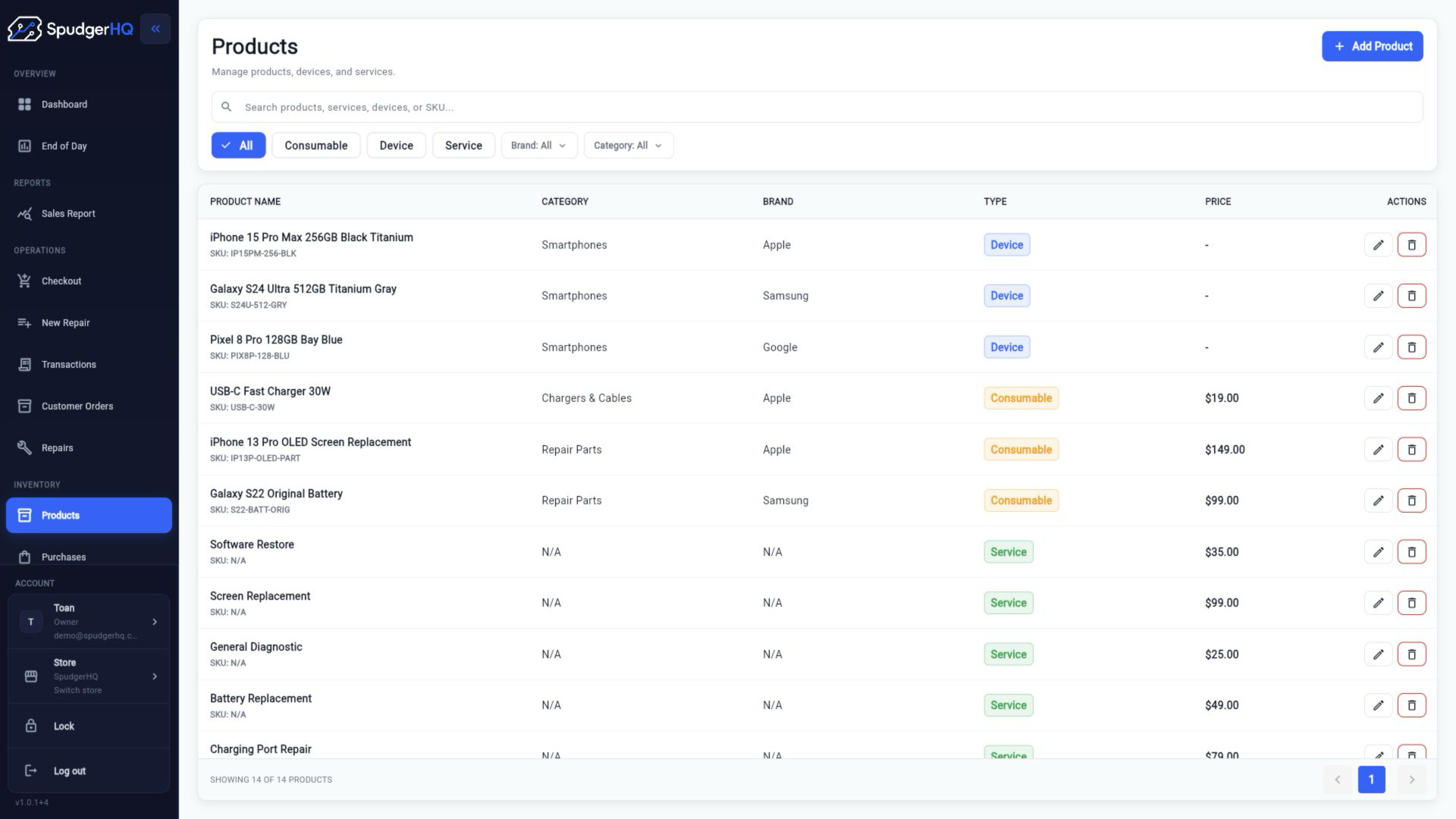
SpudgerHQ keeps the workflow’s key records in connected areas: the repair queue exposes Waiting Parts and assigned-tech context; repair detail includes customer/device, parts and labor, QA, notes, and timeline context; the Products screen provides catalog fields; the Supplier Directory keeps supplier contacts; and purchase detail captures supplier, reference, line-item, receiving, and cost context. Staff still own the part match, purchase-to-repair reference, customer conversation, and next action. See repair ticket software for phone repair shops for the broader commercial overview.
Once the waiting jobs, purchases, and customer follow-ups are visible, the broader repair shop end-of-day process shows how to review them alongside pickups, payments, cash movements, and tomorrow's priorities.
Keep the exception workflow deliberate
Waiting for Parts works when it stays specific, visible, and owned.
A repair waiting for a part does not need an elaborate process. It needs a clear definition of the blocked condition, an exact part request, a stock check, an owner for the purchase or follow-up, and a deliberate handoff when the item arrives.
- Use Waiting for Parts only when a missing part genuinely blocks the repair.
- Record exactly what the device and repair need.
- Keep the job visible until the next action is complete.
- Connect ordering activity to the blocked repair operationally, without assuming an automatic link.
- Communicate meaningful price, scope, or timing changes to the customer.
- Return the existing repair to active work promptly when the part arrives.
- Review old Waiting for Parts jobs regularly.
Keep repair tickets, parts, and job status connected
See how SpudgerHQ supports the repair-ticket side of a waiting-for-parts workflow while your team owns the purchasing and customer handoffs.