
Why repair shops need an end-of-day process
Closing routines turn a busy repair day into a usable operational record.
A repair shop can finish the day with devices on the bench, devices waiting for pickup, repairs waiting for customer approval, parts in transit, sales outside the repair queue, and cash movements that are easy to forget. Without a consistent close, the next morning starts with reconstruction: what was finished, what was promised, what was paid, and what still needs attention?
An end-of-day process gives the owner or closing staff member a short, repeatable way to answer those questions. It does not need to be an accounting close or a full stocktake. It needs to make exceptions visible, keep money movements explainable, and leave the next person with a clear starting point.
- Review the repair work that changed today.
- Separate technically completed repairs from repairs actually picked up.
- Confirm sales, payment methods, refunds, and cash movements are recorded as they occurred.
- Surface inventory, purchasing, and customer-action exceptions before they become tomorrow's surprises.
- Record the close so the shop can refer back to the same business day later.
Start with the repair queue
Review the queue as an exception list, not as a demand to touch every repair before closing.
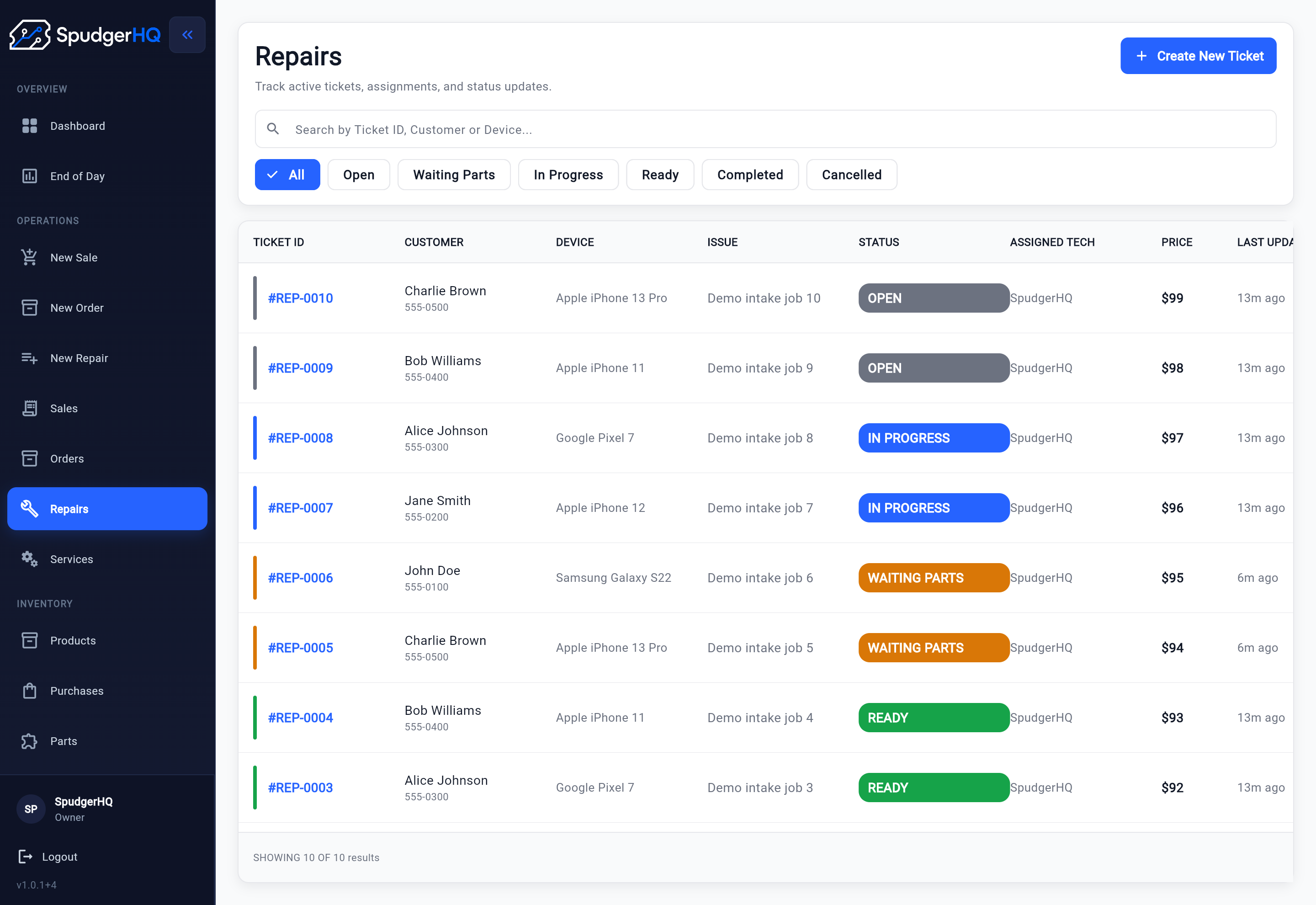
Start with repairs that are open, in progress, waiting for parts, ready for pickup, completed, or otherwise changed today. Look for status mismatches that could mislead the next shift: a repair marked completed without a clear pickup state, a device still in progress after the customer was told it was ready, or a waiting job with no visible next action.
Use the shop's status definitions as the reference for what each stage means. The daily close should identify obvious exceptions and assign a next review point; it should not invent a new status model or silently correct records without checking the underlying event. See the guide to repair status tracking for phone repair shops for the broader status model.
A queue review should ask: what is open, what changed, what is blocked, what is ready, and what needs a named next action? For repairs blocked by a missing component, follow the separate Waiting for Parts workflow rather than copying its purchasing and receiving process into this close checklist.
Review completed repairs and customer pickups
A repair can be technically complete while the device is still waiting at the shop.
Review completed or ready-for-pickup repairs separately from repairs that were physically returned to customers. For each one, distinguish the technical outcome, final QA, customer notification, payment state, and pickup state. Those are related events, but they are not interchangeable.
A device that passed QA but remains on the shelf should stay visible as waiting for pickup. A device that was picked up should not remain in the queue as if the customer still needs to collect it. If the shop has an unpaid completed repair, leave that exception visible and use the checkout workflow to review the individual ticket, payment, receipt, and pickup steps.
- Technically complete: the repair work is finished according to the shop's process.
- QA complete: the relevant post-repair checks were performed and recorded where needed.
- Customer notified: the customer has been told the device is ready or needs a decision.
- Paid or balance understood: the transaction and any remaining amount are clear.
- Picked up: the device has actually been returned to the customer.
Use the phone repair QA checklist for the detailed QA step and the phone repair shop checkout workflow for individual payment, receipt, and pickup closeout. The end-of-day process only reviews whether those outcomes are consistent across today's repairs.
Confirm today's sales and payments
Check the transaction record against what the counter team believes happened today.
Review today's sales and payment activity, including repair payments and non-repair sales if the shop records them in the same system. Look at transaction method, refunds or voids where the product supports them, incomplete or saved sales, and whether payments are attached to the right customer or repair context.
This is an operational completeness check. It is not a claim that the screen replaces bookkeeping, a processor statement, bank reconciliation, or tax records. If a transaction is unclear, document the question and follow the shop's approved accounting or payment process rather than changing a total just to make the close look clean.
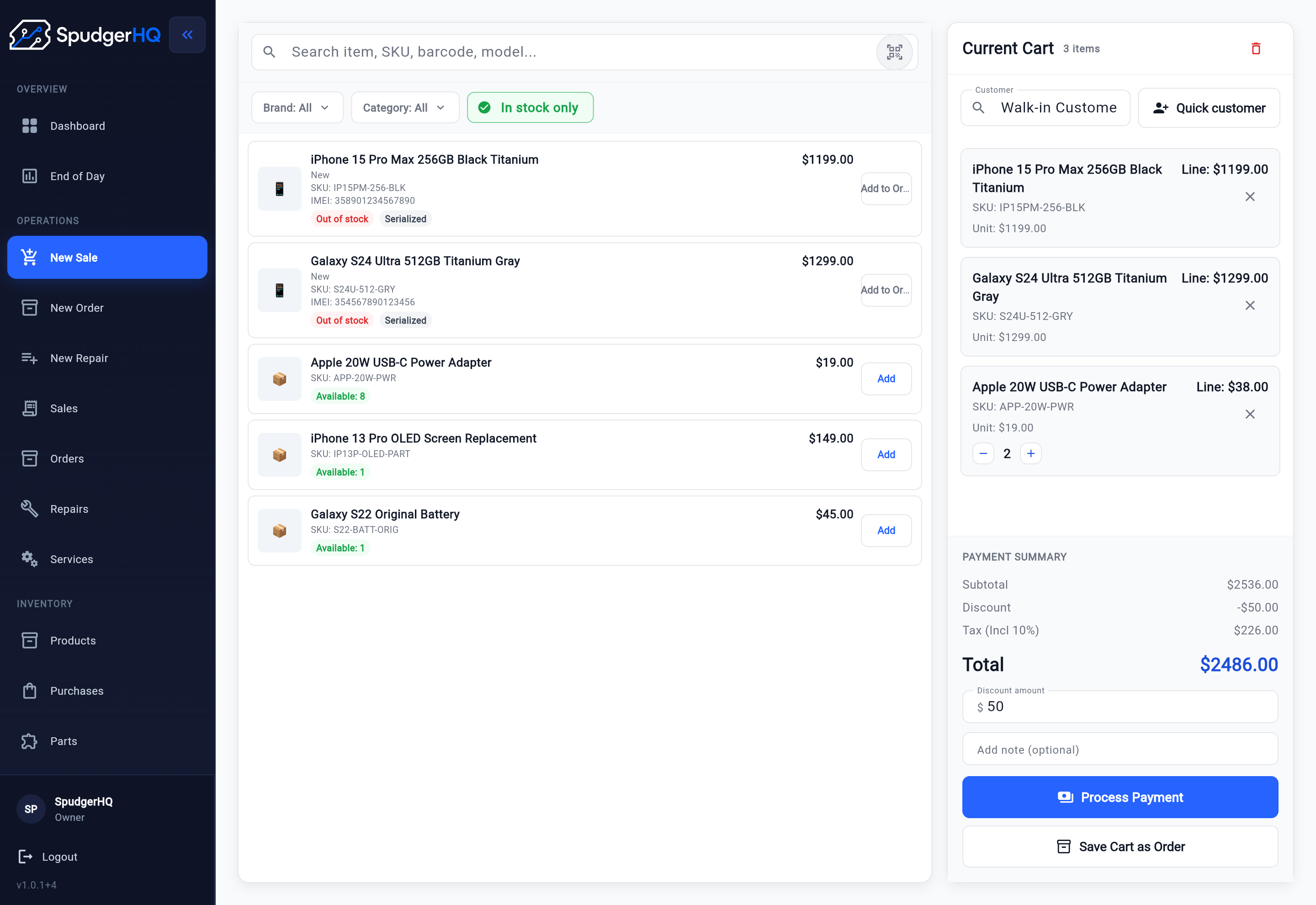
The checkout screen can help staff review the individual sale context: cart items, customer context, payment summary, and the payment action. It should be used alongside the repair record when a sale is part of a repair, not as a substitute for the broader daily review.
Reconcile cash movements
Use the recorded cash events and a physical count to explain the drawer, not to force it to balance.
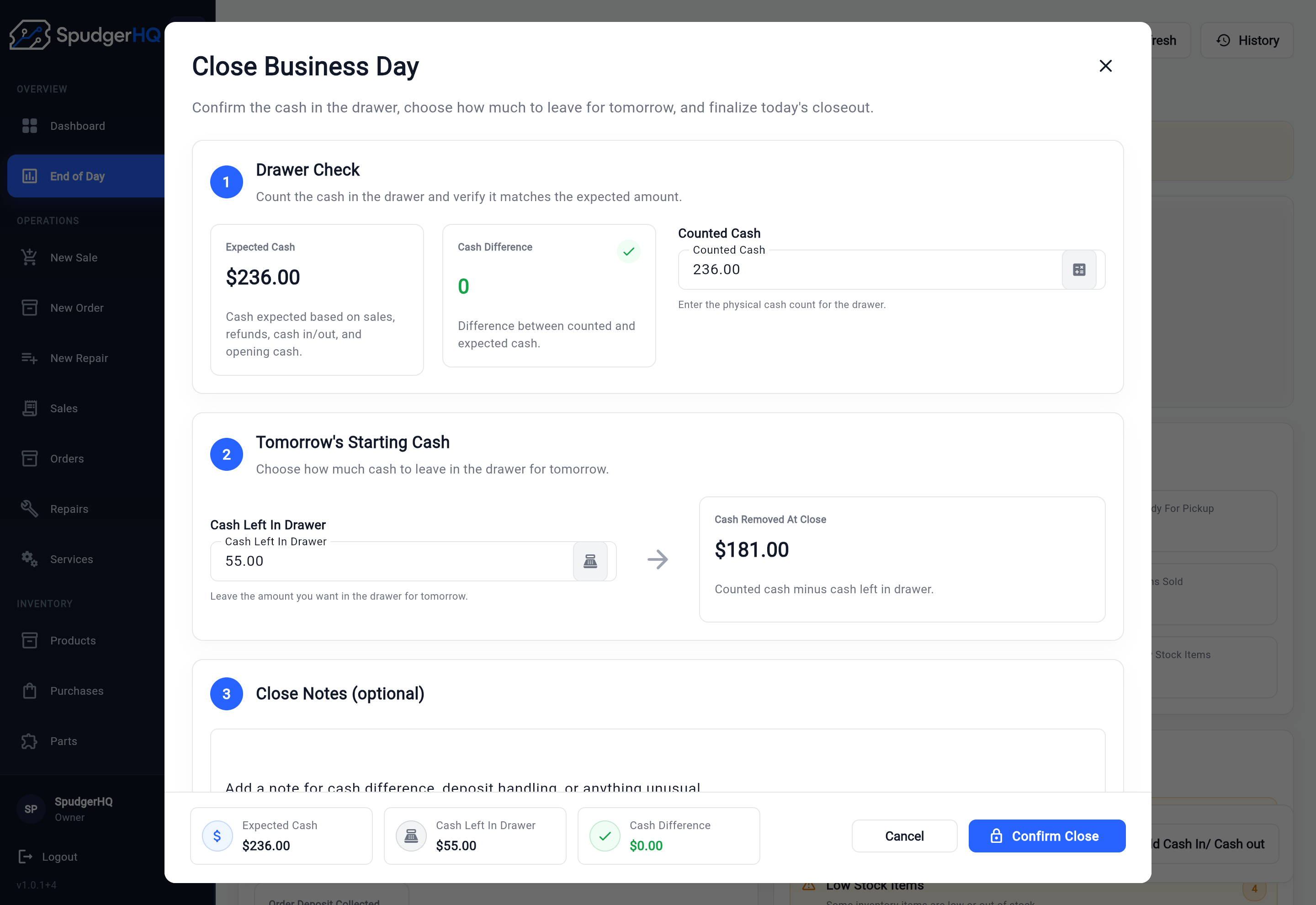
List the cash events that belong to the business day: opening cash, cash sales, cash added to the drawer, cash removed from the drawer, and cash refunds where applicable. The result is an expected cash amount for the shop's operational close. Then count the physical cash and compare the count with the displayed expected amount.
If the shop leaves a starting amount for tomorrow, record the amount left in the drawer and the amount removed at close according to the product's flow. The person closing should be able to explain the difference between expected cash, counted cash, cash left in the drawer, and cash removed at close. Do not overwrite a movement or alter a count solely to produce a zero difference.
Investigate discrepancies before closing
A non-zero cash difference is a question to investigate, not a number to hide.
When counted cash does not match expected cash, pause long enough to check the obvious causes. Confirm that a cash payment was not recorded as card, that a cash movement was not forgotten, that a refund was recorded with the right method, and that the physical count was repeated carefully. Also check whether the opening amount was entered correctly for the day.
There may be a simple explanation, or there may be an unresolved discrepancy. Record what was checked, what is known, and who owns the follow-up. The product can surface the difference and related cash fields; it does not automatically determine whether the cause was an unrecorded sale, a mistaken method, a counting error, or something else.
- Recheck the physical count and denominations.
- Review cash, card, and other recorded payment methods.
- Look for cash in, cash out, and cash refund events.
- Check incomplete, voided, or refunded transactions.
- Verify the opening cash amount and the amount left for tomorrow.
- Document the remaining question instead of changing history to balance the screen.
Review inventory exceptions
The close should surface important stock issues without becoming a nightly full inventory count.
Review the exceptions that could affect tomorrow's work: a part used but not recorded, received stock that was not entered, a damaged item still counted as usable, a stock discrepancy discovered during the day, or an important part that is now low or out of stock. Keep the review focused on action, customer commitments, and repairs that might be blocked next.
Do not use this daily close as a substitute for the shop's periodic physical count or full inventory process. For receiving, usage, adjustments, counts, and replenishment, link the exception into the more detailed repair shop inventory tracking guide.
- Parts used in repairs are represented in the shop's inventory workflow.
- Parts received today are checked against the purchase or receiving record.
- Damaged, returned, or unusable stock is not treated as available stock.
- Important low-stock or out-of-stock items are visible to the person planning tomorrow.
- A discrepancy has a documented next check rather than an unexplained adjustment.
Review purchasing and waiting-for-parts jobs
Connect the day's purchasing exceptions to the repairs and customer decisions they affect.
Review whether required purchases were recorded, whether parts received today still need an operational association, and whether supplier delays or incomplete orders change tomorrow's plan. The important question is not only “did we buy it?” but also “which repair, customer promise, or next action depends on it?”
Keep the detailed missing-part workflow in the Waiting for Parts guide. The end-of-day close should make those jobs visible, check whether anything materially changed, and carry the next action into tomorrow without duplicating the full purchasing and receiving procedure.
Review unresolved customer actions
A repair can be operationally clear to the shop while still waiting on the customer.
Scan for customer actions that could change tomorrow's workload: an approval or estimate response, a promised update, an expected pickup, a scope change, or a repair delayed because the customer has not made a decision. Record what is known and who owns the next conversation.
For approval-specific steps, use the customer approval workflow guide. This close process is only checking for unresolved customer decisions; it does not promise automatic reminders or assume that a notification was sent.
- Approval or estimate responses still needed.
- Customers who were promised a meaningful progress or delay update.
- Devices ready for pickup but not yet collected.
- Scope or price changes awaiting a decision.
- Delayed repairs where the customer expectation needs to be reset.
Identify tomorrow's priorities
Turn the close into a short next-day handoff instead of a list of unresolved anxiety.
Write down the few items that should change tomorrow morning's first decisions. Prioritize urgent repairs, parts that arrived, customer pickups, promised updates, approvals, diagnostics, purchases, and important inventory discrepancies. Include enough context that the next person can act without reopening every conversation from memory.
This is a human handoff or a recorded priority list, not a claim that the software automatically schedules work, assigns tasks, predicts demand, or sends reminders. The purpose is to make the shop's next starting point explicit.
- Name the repair, customer, part, or transaction involved.
- State what changed today.
- Write the next action in plain language.
- Note a meaningful customer or supplier expectation.
- Identify the person who should review it first.
Close the business day
Use the close flow after the operational review, when the person closing has checked the details that matter.
SpudgerHQ’s end-of-day close flow lets staff review expected cash, cash difference, counted cash, cash left in the drawer for tomorrow, cash removed at close, and optional close notes before confirming the close.
Before selecting the final close action, review the details and enter the physical count according to the shop's process. Treat the final confirmation as a business-day close, not as a way to erase an unresolved exception. If the controls look different in your account, follow the interface your team uses rather than assuming a reopen or edit capability.
The close flow supports a sequence of previewing the close, checking details and amounts, entering counted cash, recording notes when useful, and confirming the close. The available controls may vary with the shop’s configuration or payment process, so follow the interface your team uses.
Keep end-of-day history
A close record is useful when tomorrow's questions require yesterday's context.
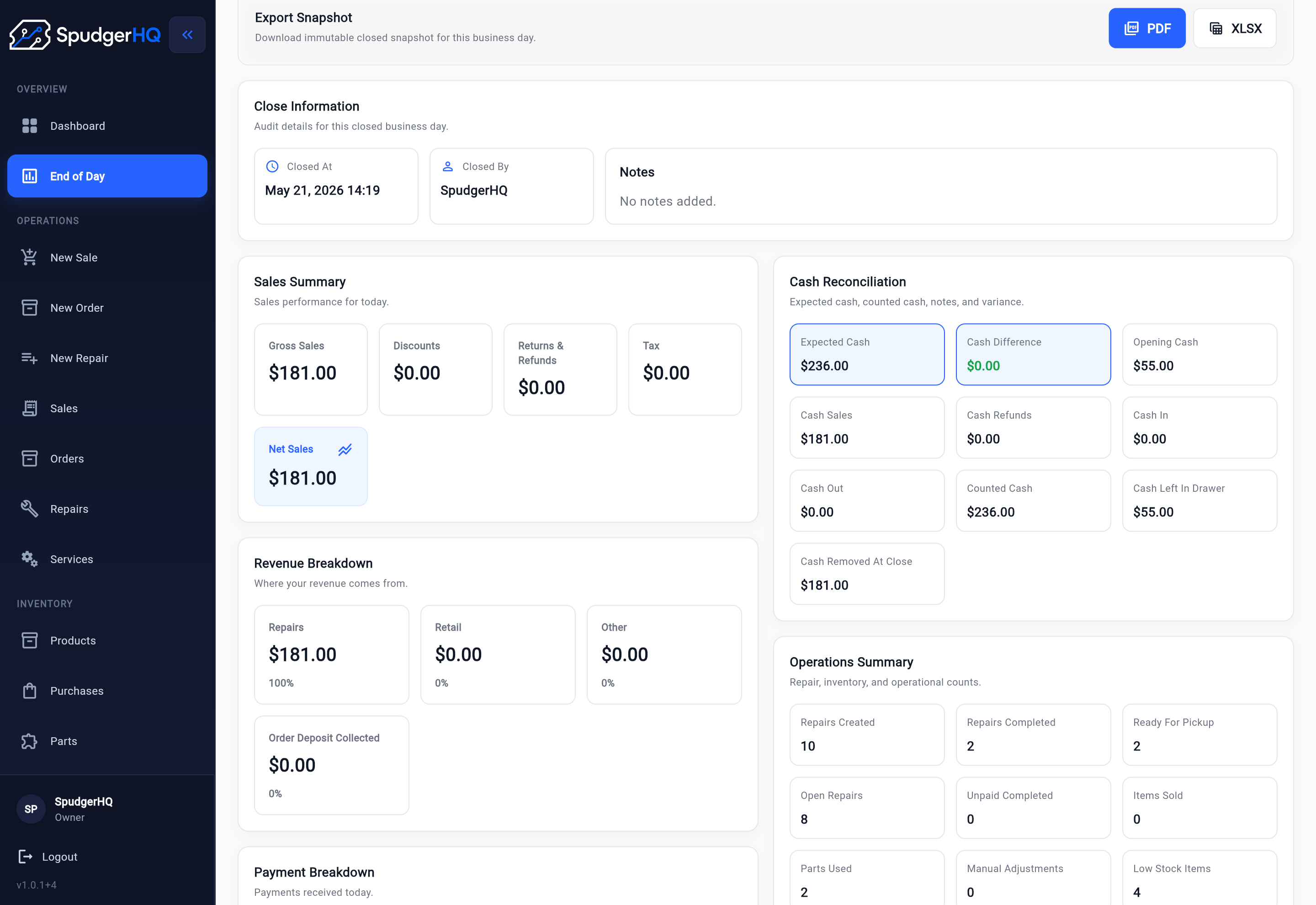
After closing, retain the business-day record with its close time, responsible user, notes, sales summary, payment or revenue context, cash reconciliation fields, and available operational indicators. Use it to answer questions such as whether a cash difference was recorded, what the opening amount was, and what operational totals were visible at close.
SpudgerHQ’s close-details view includes close information, sales summary, cash reconciliation, revenue breakdown, and operations summary, plus PDF and XLSX snapshot actions. That makes the record useful for operational review. It is not formal accounting and does not replace the shop's financial records.
- Previous close date and time.
- Who closed the day and any useful close notes.
- Expected cash, counted cash, cash difference, and cash movement context where available.
- Sales, refunds, payment methods, and operational totals exposed by the product.
- A clear distinction between an operational snapshot and formal accounting records.
Common repair shop closing mistakes
Most closing problems come from skipped distinctions, invisible exceptions, or pressure to make the screen look tidy.
A good close is deliberately ordinary. It catches the small inconsistencies that otherwise become a morning interruption or a customer-facing surprise. These are the mistakes worth checking for in a small repair shop:
Skipping open repairs
Closing only on sales leaves the next shift without a clear view of work still on the bench, waiting for parts, awaiting approval, or overdue for an update.
Treating completion as pickup
A repair can pass technical checks while the device is still waiting for the customer. Keep the technical and physical handoff distinct.
Ignoring approval and customer actions
A customer decision that is not recorded at close can turn into an unnecessary part purchase, an incorrect scope change, or a missed promise.
Losing the next action on waiting parts
A waiting job without a visible owner or next step is likely to remain blocked. Review it through the dedicated waiting-for-parts workflow.
Forgetting cash movements
A drawer count cannot explain itself if cash added, cash removed, or cash refunds were not recorded when they happened.
Forcing the balance
Changing history or overwriting a movement to produce a zero difference makes the close less trustworthy and removes the question that needed follow-up.
Leaving discrepancies unexplained
A documented unresolved difference is more useful than a clean-looking close with no explanation.
Overlooking received parts
A part can arrive without the affected repair becoming ready automatically. Make the operational association and next action clear.
Starting tomorrow without priorities
Without a short handoff, the morning team spends its first minutes rediscovering yesterday's decisions.
Having no consistent owner
If everyone assumes someone else reviewed the close, the process is not a process. Name the owner for the daily review and the follow-up for exceptions.
A fictional end-of-day example
The following example shows how one closing owner can review a mixed repair day without pretending every issue is resolved immediately.
Imagine a small phone repair shop closing on a Tuesday. Three repair tickets changed during the day: one iPhone passed QA and was picked up, one Samsung repair passed QA but is still waiting for the customer, and one Pixel repair is waiting for a replacement screen. The front desk also completed a card sale for a case, collected a cash repair payment, recorded a cash removal for a supplier delivery, and noticed that a received screen has not yet been associated with its repair record.
The owner uses the following sequence. The point is not that every question disappears before closing; the point is that each exception is named and carried forward deliberately.
- Open the repair queue and filter for repairs that are open, waiting for parts, ready, or completed.
- Confirm the iPhone repair has a completed repair record, QA context, recorded payment, and pickup outcome.
- Leave the Samsung repair visible as ready for pickup because the device is still in the shop.
- Check that the Pixel repair is still in Waiting for Parts and has a clear part and next action.
- Review whether today's repair statuses match the work that actually happened.
- Review the card case sale and confirm its transaction method and customer or sale context.
- Review the cash repair payment and confirm it is attached to the correct repair or customer context.
- Check that the supplier cash removal is recorded as a cash-out movement with a useful note.
- Count the drawer and compare the physical count with the expected cash shown for the day.
- If the amount differs, recheck payment methods, cash movements, refunds, opening cash, and the physical count.
- Flag the received replacement screen that still needs an inventory and waiting-repair association.
- Record tomorrow's priorities: contact the Samsung customer if needed, resume the Pixel when the part is ready, and associate the received screen.
- Review any approval, estimate, promised-update, or pickup action still waiting on a customer.
- Enter counted cash, record a concise close note about the documented cash removal and inventory exception, and review the close details.
- Confirm the business-day close and retain the resulting operational history for later review.
Repair Shop End-of-Day Checklist
Use this as a closing prompt. Adapt the owner, timing, and detail to the shop's actual process.
The checklist is intentionally operational. It prompts the closing owner to review the right exceptions without turning the close into a full accounting close, nightly stocktake, or automatic task scheduler.
How software supports end-of-day operations
The useful role of software is to keep the records needed for the review close enough to inspect together.
A repair shop's end-of-day process crosses repairs, checkout, payments, cash movements, inventory, and purchasing. Software can support that process when those operational records are visible in connected areas instead of being reconstructed from separate notes and receipts.
SpudgerHQ brings together repair queue context, checkout and payment flows, cash movement and business-day closeout fields, close history and exports, and inventory or purchasing context. Staff still own the review, physical count, customer conversations, exception decisions, and next-day handoff.
For the broader product view, see phone repair shop software. For the repair-specific workflow that feeds the close, see repair workflow software.
- Repairs: queue, status, customer, device, and next-action context.
- Checkout: item, customer, payment summary, receipt, and pickup context for individual closeout.
- Payments and cash movements: recorded methods and operating cash events for review.
- Inventory and purchasing: parts, receiving, stock exceptions, suppliers, and blocked-repair context.
- Business-day close: details, amounts, notes, history, and available exports for operational reference.
Make the close consistent, visible, and owned
A useful end-of-day process is short enough to repeat and specific enough to catch what matters.
Start with the repair queue, separate completed from picked up, review sales and payments, reconcile cash movements, surface inventory and purchasing exceptions, review customer actions, and write tomorrow's priorities before confirming the close. Keep detailed workflows in their dedicated guides, and use the close as the place where those workflows are checked together.
Assign one closing owner, keep unresolved discrepancies visible, and retain the close record. That habit gives a small shop a more dependable handoff without claiming that software can replace judgment, bookkeeping, or customer communication.
- Keep the daily review focused on exceptions and next actions.
- Use the detailed status, QA, checkout, approval, inventory, and waiting-for-parts workflows for their own responsibilities.
- Record cash movements when they happen and investigate differences before closing.
- Leave tomorrow's priorities specific enough for someone else to act on them.
- Retain a clear business-day record for operational follow-up.
See how SpudgerHQ brings repair operations and end-of-day closeout together
Explore how repair tickets, checkout, payments, cash movements, inventory, and daily shop context can support one repeatable closing process.
Related repair shop workflow resources
Phone Repair Shop Checkout Workflow
Review the individual path from completed repair and QA through payment, receipt, and customer pickup.
Read Phone Repair Shop Checkout WorkflowRepair Status Tracking for Phone Repair Shops
Define repair stages clearly so the closing review can identify status mismatches without inventing new states.
Read Repair Status Tracking for Phone Repair ShopsRepair Shop Inventory Tracking
Use the detailed process for receiving, using, counting, adjusting, and replenishing repair parts.
Read Repair Shop Inventory Tracking